
This week is all about managing Copilot within Microsoft Edge. There were already some nice configurations available for a while and recently an additional configuration was added around sharing tenant-approved browser history with Copilot search. That was a nice trigger for this post, focused on managing those available configurations. Working with Copilot in Microsoft Edge, does often require the organization to make that functionality available to the users. The good part is that it is often already disabled by default when using an organizational account. Especially in the EU, Copilot in Microsoft Edge has some default constraints that can be adjusted when needed. That is for example applicable to configuration around accessing Microsoft Edge page content for Entra accounts. This post will provide a closer look at the available settings, the configuration, and the user experience.
Configuring Copilot in Microsoft Edge
When looking at configuring Copilot in Microsoft Edge, it all starts with the configuration options. And it is good to be familiar with the different options. Especially because more options have been showing up recently. Most of those options are related to the data access for Copilot. The table below provides an overview of the available options, and what to use them for.
| Setting (friendly name) | Description |
|---|---|
| Control whether Microsoft 365 Copilot Chat shows in the Microsoft Edge for Business toolbar | This setting can be used, for users in an Entra ID profile, to determine whether the Microsoft 365 Copilot Chat icon will be shown in the Microsoft Edge for Business toolbar for Microsoft 365 Copilot licensed and unlicensed users. |
| Control Copilot access to Microsoft Edge page content for Entra account user profiles when using Copilot in the Microsoft Edge sidepane | This setting can be used to determine whether Copilot in the Microsoft Edge sidepane can access Microsoft Edge page content. This includes page summarization and similar contextual queries sent to Copilot. |
| Control Copilot access to page context for Microsoft Entra ID profiles | This setting can be used to control access to page contents for Copilot in the Microsoft Edge sidebar when users are logged into their MSA Copilot account. This policy applies only to Entra ID profiles. |
| Allow sharing tenant-approved browsing history with Microsoft 365 Copilot Search | This policy controls whether browsing history in Microsoft Edge is shared with Microsoft 365 Copilot Search to provide more relevant search results. Only tenant-approved, work-related sites are shared. |
Note: The default behavior for policies that control access to corporate data is that access is disabled in EU countries/regions and enabled in non-EU countries/regions.
The configuration options are all available via ADMX-backed settings in the Policy CSP. Those settings are all backed by the MSEdge.admx. Luckily, the configuration is pretty straightforward, as all settings are available within the Microsoft Edge category in the Settings Catalog. The following eight steps walk through the process of configuring those settings.
- Open the Microsoft Intune admin center portal and navigate to Devices > Windows > Configuration profiles
- On the Windows | Configuration profiles blade, click Create > New Policy
- On the Create a profile blade, select Windows 10 and later > Settings catalog and click Create
- On the Basics page, provide at least a unique name to distinguish it from similar profiles and click Next
- On the Configuration settings page, as shown below in Figure 1, perform the following actions and click Next
- Click Add settings, navigate to Edge and select Allow sharing tenant-approved browsing history with Microsoft 365 Copilot Search (User), Control whether Microsoft 365 Copilot Chat shows in the Microsoft Edge for Business toolbar, Control Copilot access to page context for Microsoft Entra ID profiles and Control Copilot access to Microsoft Edge page content for Entra account user profiles when using Copilot in the Microsoft Edge sidepane in Settings picker
- Configure the required settings for the environment with the values like the following
- Switch the slider with Allow sharing tenant-approved browsing history with Microsoft 365 Copilot Search (User) to Enabled, to allow sharing data with Copilot search
- Switch the slider with Control whether Microsoft 365 Copilot Chat shows in the Microsoft Edge for Business toolbar to Enabled, to show the Copilot chat icon in Microsoft Edge
- Switch the slider with Control Copilot access to page context for Microsoft Entra ID profiles to Enabled, to allow access to page context for Entra profiles
- Switch the slider with Control Copilot access to Microsoft Edge page content for Entra account user profiles when using Copilot in the Microsoft Edge sidepane to Enabled, to allow access to Microsoft Edge page content

- On the Scope tags page, configure the required scope tags and click Next
- On the Assignments page, configure the assignment for the required user or devices and click Next
- On the Review + create page, verify the configuration and click Create
Important: This is just an example! Make sure to align the configuration with the AI policy in the organization.
Note: In some scenarios the Copilot Chat icon will not show up in Microsoft Edge. When that happens, it might be necessary to silently install the following extensions: nkbndigcebkoaejohleckhekfmcecfja, ofefcgjbeghpigppfmkologfjadafddi.
Experiencing Copilot in Microsoft Edge
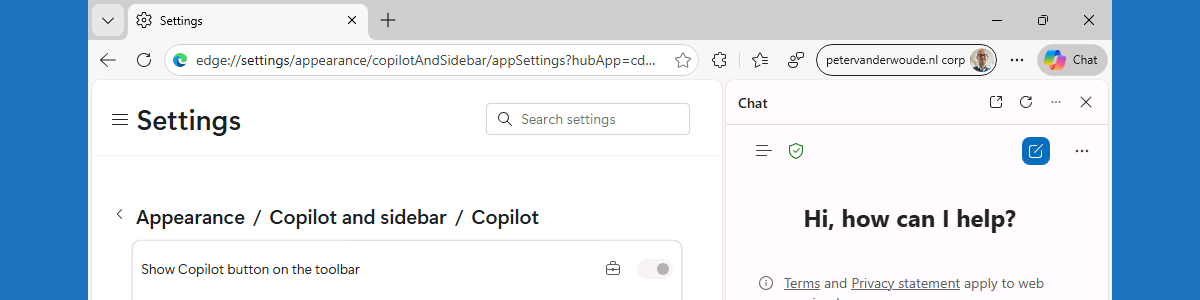
Once the configuration is applied, it is pretty straightforward to experience the behavior. When opening Microsoft Edge, as shown below in Figure, the first thing that should be obvious is the availability of the Copilot Chat icon on the right top corner of the browser. That should open the Copilot Chat experience in the browser. On top of that, it is also interesting to look at the available configuration options in Microsoft Edge. When navigating in Settings to Appearance > Copilot and sidebar > Copilot that should show a few of the configured settings. The interesting part is the status of the settings. By default, in EU countries/regions, all the settings are similar as the current status of Allow Copilot to transcribe your video. In that case there is no central configuration available yet, so the default will be off and not configurable by the user. When the configuration is managed by the IT administrator, the configuration will be similar as the other two settings that are shown below in Figure 2.

Important: This is just an example! Make sure to align the configuration with the AI policy in the organization.
More information
For more information regarding configuring Copilot in Microsoft Edge, refer to the following docs.
- Microsoft Edge Browser Policy Documentation CopilotPageContext | Microsoft Learn
- Microsoft Edge Browser Policy Documentation EdgeEntraCopilotPageContext | Microsoft Learn
- Microsoft Edge Browser Policy Documentation Microsoft365CopilotChatIconEnabled | Microsoft Learn
- Microsoft Edge Browser Policy Documentation ShareBrowsingHistoryWithCopilotSearchAllowed | Microsoft Learn
Discover more from All about Microsoft Intune
Subscribe to get the latest posts sent to your email.
Hi Peter, thanks for this. Have you come across a similar topic which is to disable general Copilot and leave Copilot 365. Its a compliance issue where 365 Copilot enforces data protection but general copilot allow us use it without logging in. I have tried the the Intune Copilot AI – Disable policy without success and many hours discussing the issue with Copilot. Wondering if you have had this request before, thanks.
Hi Gerry,
Depends on what you mean with the general Copilot..
Regards, Peter
Hi Peter, hoping to disable the built in W11 Copilot App (Copilot free), the one that does not have the M365 label running across the icon, thanks – Gerry
Hi Gerry,
Do you want to disable it, or remove it?
Regards, Peter
Hey Peter,
I’m currently having an issue managing the Windows “Copilot” app. I want to allow our users to use “Copilot for Microsoft 365,” but Windows is currently pulling down the standalone “Copilot” app (seemingly as a Win32/web app via Edge updates). The problem with this version is that we can’t force enterprise account logins.
Is there a known way to block this specific Copilot app located in C:\Program Files (x86)\Microsoft\Copilot\Application without affecting Copilot for Microsoft 365? Or is our only option to disable both completely somehow?
BR
Hi Julian R,
I would say that you could remove the app using something like this: https://petervanderwoude.nl/post/dynamically-removing-preinstalled-microsoft-store-apps-using-native-functionality/
Regards, Peter