

This week is all about a recently introduced setting in the automatic enrollment configuration of Windows devices, and that setting is Disable MDM enrollment when adding work or school account. That is a setting that many IT administrators have been waiting for, as it addresses that terrible experience when adding a work or school account to an app. That was the fantastic checkbox experience in which the user had to uncheck Allow my organization to manage my device to prevent a (personal) device from being enrolled into Microsoft Intune. Luckily, that has changed for the better. That whole experience got a whole lot better, as the new recently introduced experience differentiates with two screens between app sign-in and device management. Best part of it, with the new setting it is possible to completely disable the device management page completely. This post will provide a closer look at that new setting, the configuration, and the eventual user experience.
Important: This post is meant to document this capability. Whatever the scenario is, make sure to think about the many reasons why managing personally-owned Windows devices might be a bad idea.
Note: This configuration is scoped to the app-initiated enrollment flow. That enrollment flow is triggered when adding a work or school account to an app such as Microsoft Outlook, Microsoft Edge, or Microsoft Teams.
Configuring the ability to disable MDM enrollment
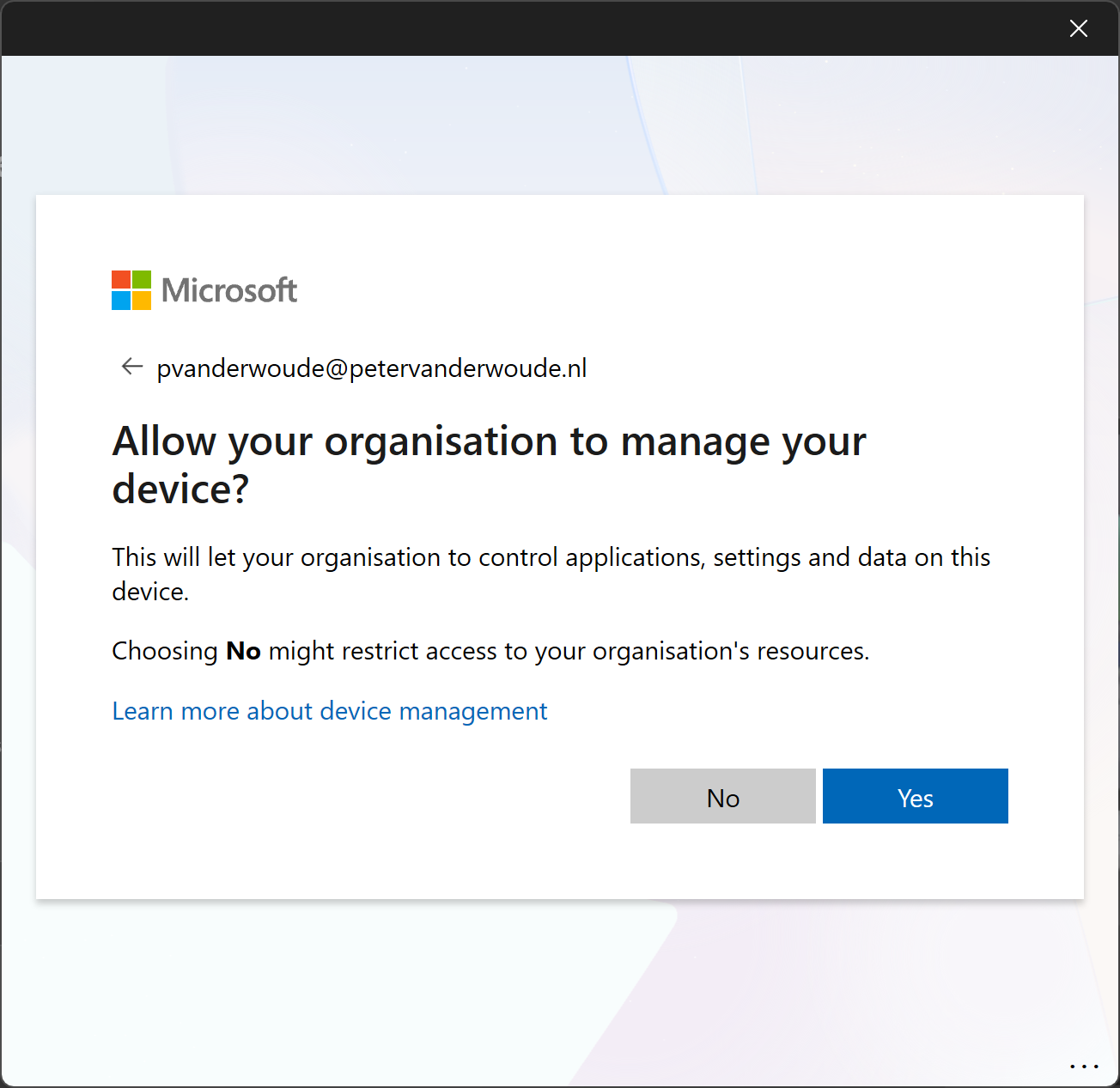
When discussing the ability to disable MDM enrollment when adding a work or school account, it is also immediately about the new guided experience for the user when adding a work or school account to an app. Previously that was a single confusing dialog box with a by default selected checkbox that would allow the device to be managed by the organization. That experience has been radically changed. And in a positive way. Now the enrollment flow is split into two separate dialog boxes. A separate dialog box for signing into the app (as shown further below in Figure 2) and a separate dialog box for allowing the organization to manage the device (as shown further below in Figure 3). What makes that experience even better is that the IT administrator can now also influence that enrollment flow. And that is exactly what this new configuration is focused on.
The new configuration setting Disable MDM enrollment when adding work or school account can be used to control that second dialog box in the new enrollment flow. That makes it at lot more controllable for the organization, as it enables the organization to completely remove that second dialog box. That directly prevents users from accidently enrolling (personal) devices into Microsoft Intune, and also protects the organizations against those that are deliberately enrolling (personal) devices to bypass security requirements. The following two steps walk through the process of disabling the MDM enrollment.
- Open the Microsoft Intune admin center portal navigate to Devices > Windows > Enrollment > Automatic enrollment (this is basically a redirect to the Mobility page in the Microsoft Entra admin center portal)
- On the Microsoft Intune page, switch the slider with Disable MDM enrollment when adding work or school account to Yes and click Save

Experiencing the disabled MDM enrollment
After applying the configuration, it is pretty straightforward to experience the configuration. Mainly because it directly hooks in to the new app-initiated enrollment flow. Like mentioned earlier, that flow now contains two separate dialog boxes (see Figure 2 and Figure 3 below). And that makes it a whole lot easier to make adjustments to that flow. When the configuration is in place to disable the MDM enrollment, the user will simply no longer receive the second dialog box (Figure 3) during that app-initiated enrollment flow. That will take away a lot of confusion for users when working with apps on personally-owned devices.

Important: From a device management standpoint, the best option is still to block personally-owned Windows devices.
More information
For more information regarding automatic MDM enrollment for Windows, refer to the following docs.
- Enable MDM automatic enrollment for Windows – Microsoft Intune | Microsoft Learn
- Add Your Work or School Account to a Windows Device – Microsoft Support
Discover more from All about Microsoft Intune
Subscribe to get the latest posts sent to your email.
1 thought on “Disabling MDM enrollment when adding work or school account”