
This week is also about Microsoft Edge. More specifically, about managing browser extensions for Microsoft Edge. That has been a subject before, but in that case it was focused on fully managing Microsoft Edge browser extensions on Windows devices. In that case, it was a pretty strict configuration focussed on creating an allow list for Microsoft Edge browser extensions. There are, however, easier methods for allowing users to request the installation of extensions for Microsoft Edge. Within the Microsoft Edge management service there is ability to block the installation of extensions by default, while allowing user to request the installation of any blocked extension. Once the installation is requested, the IT administrator has to approve the installation by allowing the requested extension. With that, IT administrators can still provide the user with some flexibility around extensions, while staying in control. That control is important as nowadays browser extensions provide a security risk by gaining access to browser activity. That potentially allows stealing sensitive data, injecting malware, tracking for adware, hijacking sessions, and more. This post will provide a closer look at getting control on Microsoft Edge browser extensions.
Allowing users to request Microsoft Edge browser extensions
When looking at the configuration of blocking the installation of Microsoft Edge browser extensions, the configuration is actually pretty straightforward. That process is documented in this earlier blog post about managing Microsoft Edge browser extensions on Windows devices. That configuration is mainly focused on using Microsoft Intune for the configuration. For allowing users to request the installation of browser extensions, by using default functionality, the configuration is actually only available via the Microsoft Edge management service. The configuration is available via the Managed extensions tab on a policy in the Microsoft Edge management service. That off course contains a combination of policies created in the management service and policies created in Microsoft Intune. The experience, however, has been that managing browser extensions only really works on policies that are created directly in the management service. The following steps walk through the creation of a policy that blocks all the extensions by default and allows users to request the installation of blocked extensions.
- Open the Microsoft 365 admin center portal and navigate to Setting > Microsoft Edge
- On the Microsoft Edge for Business page, navigate to the Configuration policies tab and click Create policy
- On the Basics page, provide at least a unique name to distinguish it from similar profiles, select Windows, select Cloud as the policy type, and click Next
- On the Settings page, add the ExtensionInstallBlocklist setting with the following configuration and click Next
- Specify * as value for the setting Control which extensions cannot be installed to block all extensions
- Select Windows as the platform to which the policy applies
- On the Extensions page, as shown below in Figure 1, configure the following settings and click Next
- Select Extension (1) with the setting Allow these types of apps and extensions
- Select Block external extensions from being installed (2) with the setting External extensions
- Select Allow users to request blocked extensions (3) with the setting Extension requests
- Select Block all unmanaged extensions by default (4) with the setting Unmanaged extensions
- Configure the remaining settings to Not configured

- On the Assignments page, add the required group assignment and click Next
- On the Finish page, review the configuration and click Review and create
After creating the new cloud policy in the Microsoft Edge management service, that new policy can be used for the configuration to allow requesting the installation of Microsoft Edge browser extensions. That requires allowing Microsoft Edge to send data about blocked extensions to the Microsoft Edge management service. The following steps walk through the required steps.
- Open the Microsoft 365 admin center portal and navigate to Setting > Microsoft Edge
- On the Microsoft Edge for Business page, navigate to the Configuration policies tab and select the just created policy
- Navigate to the Managed extensions tab of the just created policy and select the Requests section
- In the Requests section, click Manage request settings
- On the Manage request settings blade, as shown below in Figure 2, select Enabled, specify notification information and click Save

Requesting the installation of Microsoft Edge browser extensions
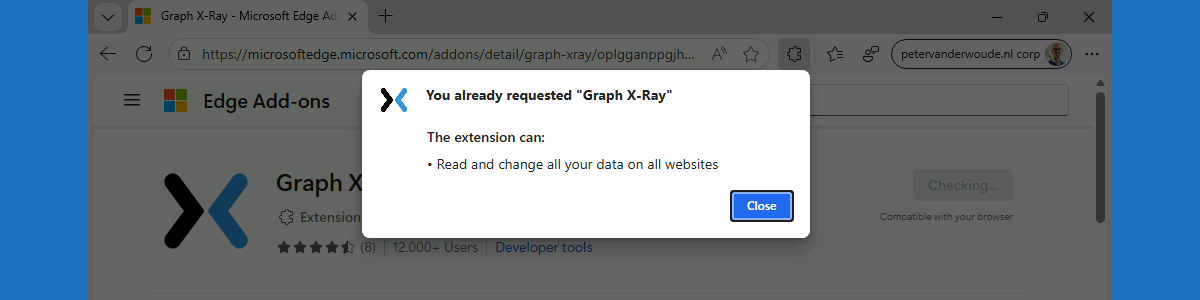
When the configuration for allowing users to request the installation of Microsoft Edge browser extensions is in place, it is actually pretty straightforward to experience the behavior. That experience starts with requesting a browser extension. When the user wants to install new browser extensions, the user now receives a prompt to send a request to the IT administrator, as shown below in Figure 3. That prompt is the same for all blocked browser extensions.
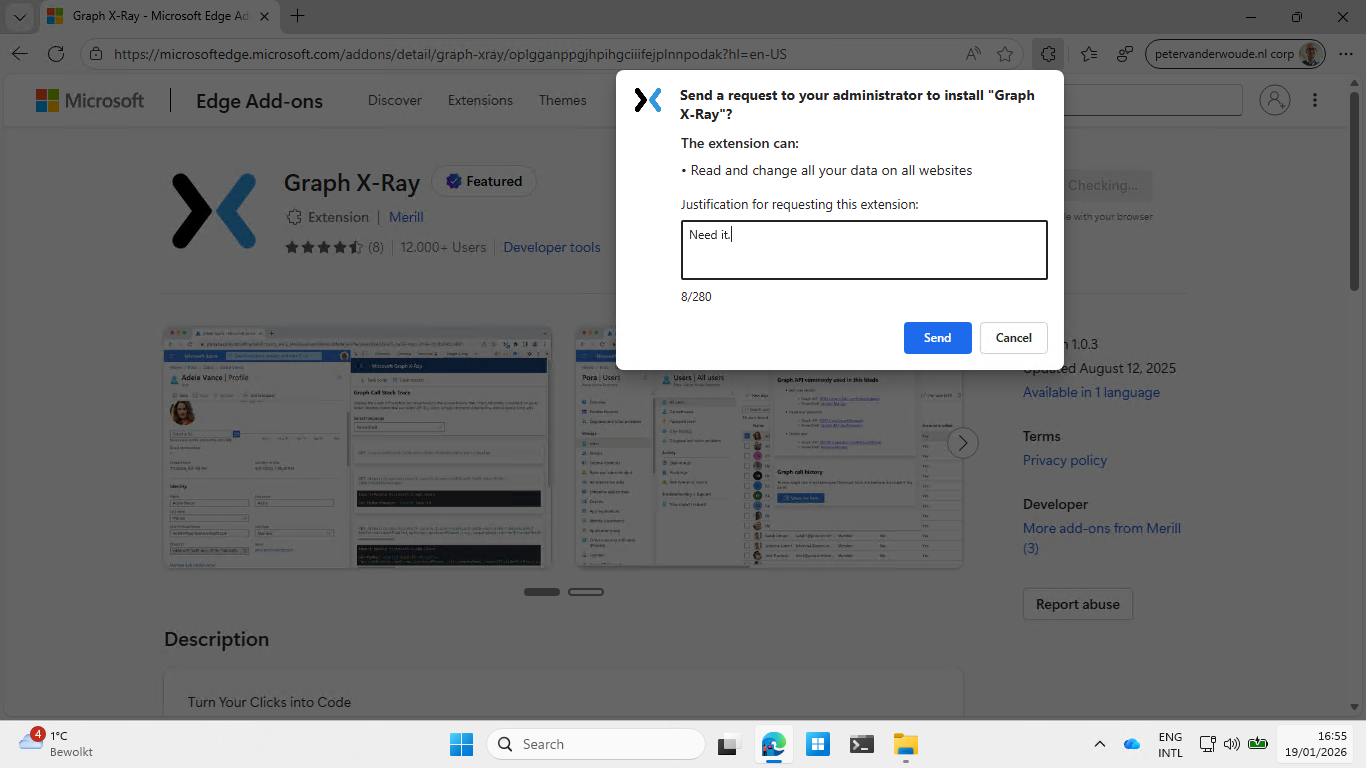
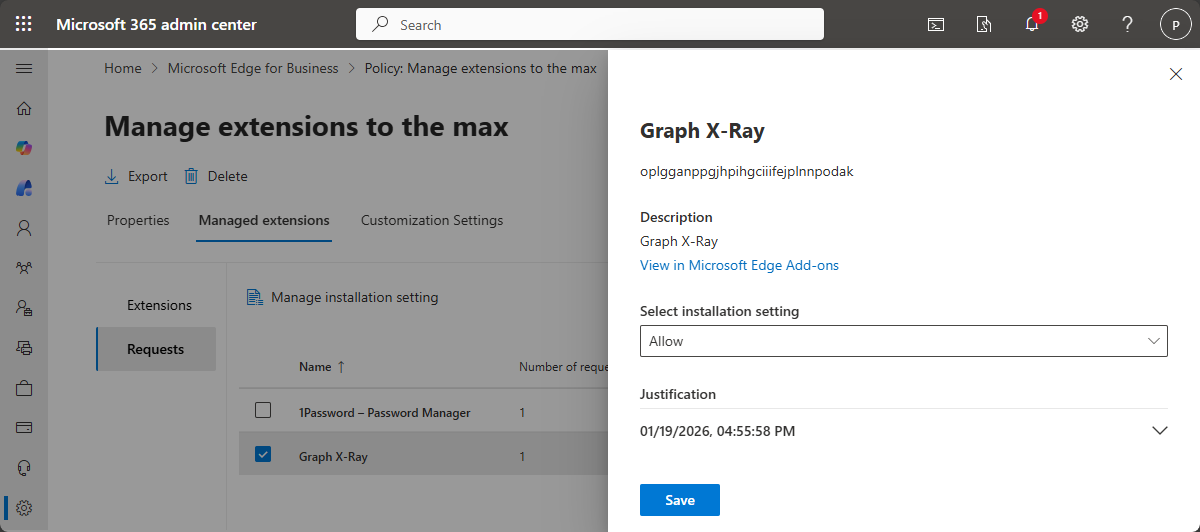
Once the request has been posted the IT administrator will see that information in the Monitoring dashboard of the Microsoft Edge management service, as the number of Requested extensions will simply increase. On top of that, the email configuration will make sure that the IT administrator will receive a daily overview of the requested extensions via the email. To actually allow or block the installation of the requested browser extension, the IT administrator must navigate to Managed extensions > Requests on the created policy. That should provide an overview of all the requested browser extensions. The IT administrator can now simply select the browser extension and choose to either allow or block the installation, as shown below in Figure 4.
When the installation of the browser extension is allowed, the user will receive a notification on the next synchronization of the policy. That notification tells the user about the approval and clicking on that notification brings the user directly to the installation page of the browser extension. Now the user can actually click Get > Add extension for the installation.
More information
For more information about managing Microsoft Edge browser extensions, refer to the following docs.
- Browser extensions assessment – Microsoft Defender Vulnerability Management | Microsoft Learn
- Manage Microsoft Edge extensions in the enterprise | Microsoft Learn
- Extensions management | Microsoft Learn
- Deploy Microsoft Edge policy using ADMX template in Microsoft Intune | Microsoft Learn
Discover more from All about Microsoft Intune
Subscribe to get the latest posts sent to your email.
Hello,
I think it’s a good thing to have this but currently we manage Edge settings with Intune. And if we manage with Intune the setting “ExtensionSettings” https://learn.microsoft.com/en-us/DeployEdge/microsoft-edge-browser-policies/extensionsettings , it create a conflict with this configuration. Because this configuration use this setting.
Hi Michael,
In the end they are different places to configure the same settings. So, I understand that it would create conflicts. But you should be able to block all and only enable requested extensions.
Regards, Peter
I try to modify but I can’t delete in the policy the setting “ExtensionSettings” that’s causing the problem. Too bad. Too soon for us. 😉
Thank you for sharing! Can’t you integrated those settings into a single policy?
Regards, Peter
I don’t think so. If I create a simple policy on M365 admin with the minimum, the ExtensionSettings is add. And I can’t modify this setting in this policy. So I will inevitably have a conflict.
I’m taking this opportunity to thank you for your blog. I read it often and the articles are usually interesting. Thank you for sharing. 😉
Thank you for sharing, Michael.
Regards, Peter
Hi Peter,
Love your work and ongoing contributions to the community.
I have been able to successfully get Edge extensions blocked when creating an Intune policy, but when I create a “cloud” policy in M365 Edge For Business blade, it does not apply. Same device group used for each policy. Anything I should be checking for? Machines are Entra only, not hybrid.
Regards,
MP
Hi Michael,
The Microsoft Edge management service is user oriented. So, I would suggest to try a user group.
Regards, Peter
It breaks Copilot within Edge, cannot allow the appID’s normally used by a intune policy to allow Copilot being enabled.
Thanks for sharing, Lars. To be honest, I’m currently looking at my device with exactly that combination, and I’m not seeing that behavior.
Regards, Peter
I had to add a second intune policy next tot the Microsft edge for business cloud setting.
One where we silently install these extensions: nkbndigcebkoaejohleckhekfmcecfja & ofefcgjbeghpigppfmkologfjadafddi
This has brought back the copilot chat option, might it be you have a different policy to enable the Copilot button?
Hi Lars,
That could very well be the case, as I’ve been working on a post about managing Copilot in Edge. And for that post, I had added those extensions/add-ins…
Regards, Peter
Hi Peter,
I cant see the user who has requested the extension. Can you see it somewhere?
Hi Manual,
I have the same. I only see that it has been requested, how often, and the justifications.
Regards, Peter
Hello Peter, what can I check since the request do not come though even though I have all extensions blocked, an allow list set, and the request enabled to get an email? Also the portal page does not update with any extension request even though its been requested. If you would go back and try requesting the same extension you cannot because it states its already been requested.
Hi Mike,
Have you used a Cloud policy? I’ve seen that behavior when I used an Intune policy as the starting point for the configuration.
Regards, Peter
HI Yes, its definitely a cloud policy.
Hi Mike,
In that case I’m a bit out of idea’s, as I haven’t seen that behavior myself. When you look at the applied policy in Edge, the required settings are all coming from the cloud and not from Intune?
Regards, Peter
Hi Peter, I figured it out. I applied it to a device policy and changed it to another policy with my test users and then it was applied successfully. One big gotcha I learned from EMS and extension management I will share is being very careful when you go allow/block on the extensions monitoring page under Active extension requests. If you change the setting to allow or block it applies to all cloud/Intune policies and overwrites the Intune policies where I had to go in and fix. I feel that has to be a bug where you should be able to overwrite an Intune policy from EMS since it can clear out the policy if any Edge management settings are on. True Story. Being that cloud policy settings do not have the exact same settings, Intune policies should not be touched IMO.
Thank you for your article and helping me. I really appreciate it.
Thank you for sharing, Mike!
Regards, Peter