

This week is still about Microsoft Edge. More specifically, this week is all about the secure password deployment feature of Microsoft Edge. Secure password deployment enables IT administrators to securely deploy encrypted shared passwords to users. That can be useful with shared credentials for specific user accounts and applications. For example for easily getting access to a specific dashboard, or to specific social media accounts. There are many possible use cases. With secure password deployment, users will receive the deployed passwords in their work profile in Microsoft Edge on their managed device. That will help with reducing the risk of (over)sharing passwords with the wrong audience, and with that it helps with enhancing the overall security posture of the organization. This post will look closer at the secure password deployment feature, the configuration and the user experience. On top of that, it will describe an important additional configuration to secure the deployment.
Note: The configuration of secure password deployment is only available via Microsoft Edge management service.
Configuring secure password deployment in Microsoft Edge
When looking at the secure password deployment feature, it is good to first understand some of the technical details. An important detail is that the feature is directly integrated into the Microsoft Edge management service. That is the place for the configuration, and that configuration is only available for the cloud policy type. Once the secure passwords are deployed to the users, the passwords cannot be viewed, edited, deleted, or exported, and will automatically show up in the work profile in Microsoft Edge. Those passwords become available via the existing and familiar autofill experience in Microsoft Edge. To prevent users from revealing the secure passwords, it is strongly advised to restrict access to the developer tools in Microsoft Edge. Besides that, the secure password deployment feature integrates with the Microsoft Information Protection SDK, to enable identity-bound encryption. That encryption makes sure that encrypted credentials can only be accessed by authenticated users.
The configuration is available via the Customizations Settings tab on cloud policies in the Microsoft Edge management service. The following steps walk through the creation of a clear cloud policy that further does nothing.
- Open the Microsoft 365 admin center portal and navigate to Setting > Microsoft Edge
- On the Microsoft Edge for Business page, navigate to the Configuration policies tab and click Create policy
- On the Basics page, provide at least a unique name to distinguish it from similar profiles, select Windows, select Cloud as the policy type, and click Next
- On the Settings page, add no settings and click Next
- On the Extensions page, configure no settings and click Next
- On the Assignments page, add the required group assignment and click Next
- On the Finish page, review the configuration and click Review and create
Note: Alternatively, it is also possible the reuse an existing cloud policy for the secure password deployment feature.
After creating the new cloud policy in the Microsoft Edge management service, that new policy can be used for enabling the secure password deployment feature and specifying the secure passwords. The following steps walk through the required steps.
- Open the Microsoft 365 admin center portal and navigate to Setting > Microsoft Edge
- On the Microsoft Edge for Business page, navigate to the Configuration policies tab and select the just created policy
- Navigate to the Customizations Settings tab of the just created policy and select the Secure password deployment section
- In the Secure password deployment section, click Add credentials
- On the Add credentials blade, as shown below in Figure 1, specify the credential information and click Save
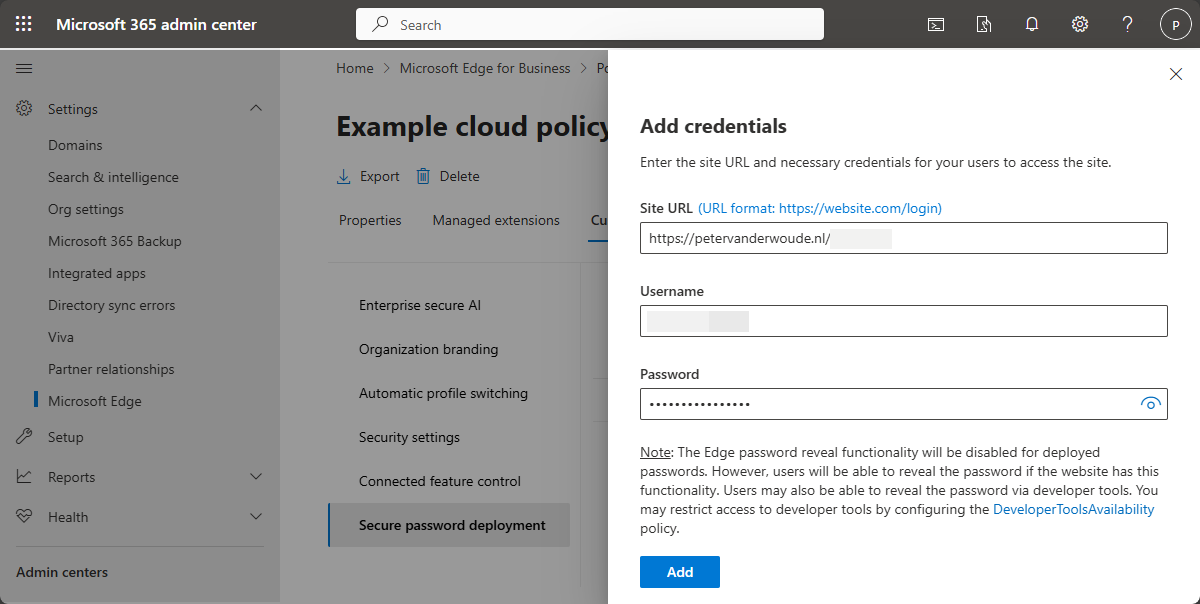
Note: Make sure to format the site URL correctly to make sure that the password will become available.
Configuring developer tools availability in Microsoft Edge
An important aspect of the secure password deployment feature is to actually make sure that the passwords cannot be revealed, and with that, cannot be easily shared and reused via different channels. That can be achieved by using the Control where developer tools can be used (DeveloperToolsAvailability) setting, as that setting controls where the developer tools can be used in Microsoft Edge. That setting is an ADMX-backed setting that is based on the MSEdge.admx. The configuration is pretty straightforward, as the setting is available within the Settings Catalog. The following eight steps walk through the process of preventing users from using developers tools, when relying on the secure password deployment feature.
- Open the Microsoft Intune admin center portal and navigate to Devices > Windows > Configuration profiles
- On the Windows | Configuration profiles blade, click Create > New Policy
- On the Create a profile blade, select Windows 10 and later > Settings catalog and click Create
- On the Basics page, provide at least a unique name to distinguish it from similar profiles and click Next
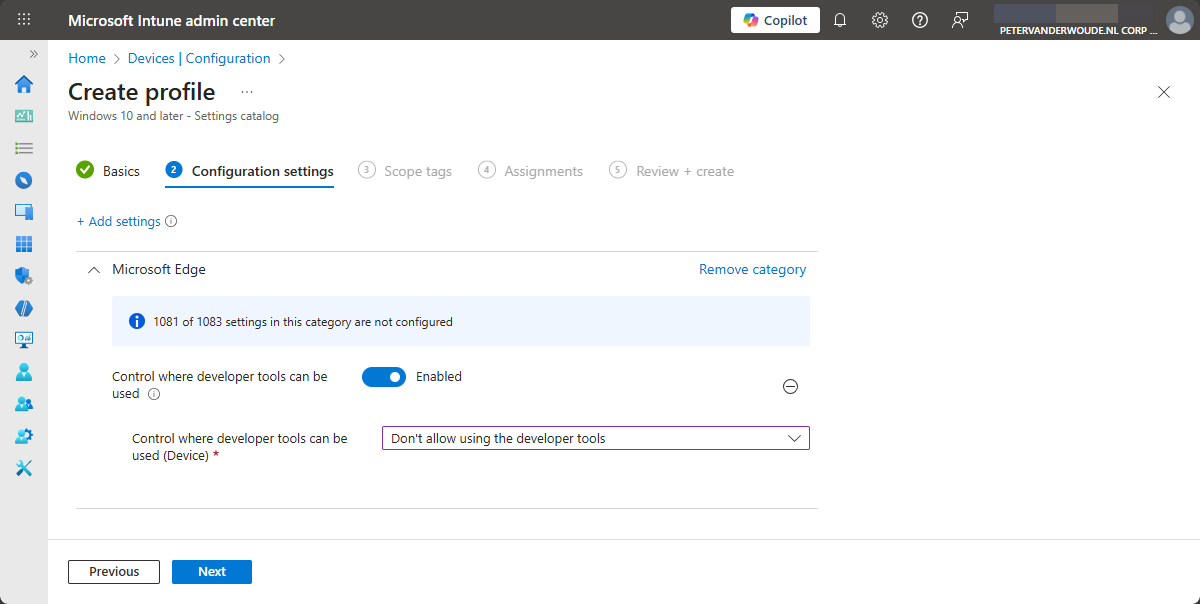
- On the Configuration settings page, as shown below in Figure 2, perform the following actions and click Next
- Click Add settings, navigate to Microsoft Edge and select Control where developer tools can be used in Settings picker
- Switch the slider with Control where developer tools can be used to Enabled, to enable the sub-setting
- Select Don’t allow using the developer tools with Control where developer tools can be used (Device) to prevent users from using the developer tools to prevent the ability to reveal passwords
- On the Scope tags page, configure the required scope tags and click Next
- On the Assignments page, configure the assignment for the required user or devices and click Next
- On the Review + create page, verify the configuration and click Create
Note: Make sure to align the assignment of this configuration with the secure password deployment feature.
Experiencing secure password deployment in Microsoft Edge
When looking at actually experiencing the secure password deployment feature in Microsoft Edge, that is actually pretty straightforward. Simply open Microsoft Edge and navigate to the site of the stored credentials. That will show the familiar autofill experience, including the shared passwords section. That section contain the credentials that are securely shared by the organization. Besides that, those credentials can also be found in the Microsoft Password Manager in Microsoft Edge. Both of those experiences are shown below in Figure 3. The additional configuration to disable the developer tools can be easily verified by looking at that option in Microsoft Edge. That option should be grayed out with a lock.

Note: Disabling the developer tools is really focused on preventing users from revealing the secure passwords.
More information
For more information about secure password deployment in Microsoft Edge, refer to the following docs.
- Customization settings | Microsoft Learn
- Introducing secure password deployment in Microsoft Edge for Business – Microsoft Edge Blog
- Microsoft Edge Browser Policy Documentation DeveloperToolsAvailability | Microsoft Learn
Discover more from All about Microsoft Intune
Subscribe to get the latest posts sent to your email.
Thanks.
It could be usefull in some case.
Great article, thanks Peter, we use Dashlane and the Edge managed deployment is a much better solution. Hiding the PW is a super feature.
Thank you for sharing!
Regards, Peter