

This week is all about enhancing the device inventory for Windows devices. Device inventory is a new feature in Microsoft Intune that is specifically focused on enhancing the existing device inventory for Windows devices. That enables the IT administrator to add additional hardware properties to the existing inventory of Windows devices, by relying on the available properties in the Intune data platform. The additional hardware properties can help the organization to better understand the state of the Windows devices and to make potential business decisions based on that information. It really adds additional insights into Microsoft Intune that help with getting in more control and getting better overviews of the Windows devices within the environment. Basically, getting richer reporting information. This blog post will start with configuring the additional device inventory properties, followed with verifying the configuration and verifying the additional inventory information.
Note: Device inventory is available within the Intune core product. No additional licensing is required.
Creating the device properties catalog
The additional device inventory capabilities are built on top of the Intune data platform. Just like the Device query functionality. The Intune data platform schema contains an overview of the data that is available for querying and now also for inventorying. Intune now provides direct access to those entities for inventory. And, even better, that functionality is available within the Intune core product. So, no additional licensing is required. While Device query can be used to real-time query data from active Windows devices, Device inventory can be used to gather data from Windows devices for reporting purposes. Different use cases with eventually access to the same data. That also means that the additional hardware properties for enhancing the inventory of Windows devices, is limited to the data that is available via the Intune data platform.
To actually start with collecting additional hardware properties, it’s important to get the right configuration in place. That configuration is the newly introduced Properties catalog profile. That profile can be used to determine the additional hardware properties that should be part of the inventory. After applying that configuration to Windows devices, an additional agent will be installed that is used to actually perform the inventory activities. The following steps walk through the creation of such a profile and enabling additional hardware properties from the Intune data platform for inventory.
- Open the Microsoft Intune admin center portal and navigate to Devices > Windows > Configuration
- On the Windows | Configuration page, click Create > New policy
- On the Create a profile blade, select Windows 10 and later > Properties catalog and click Create
- On the Basics page, provide at least a unique name to distinguish it from similar profiles and click Next
- On the Configuration settings page, as shown below in Figure 1, click Add settings to browse through the available properties and to select the properties that should be added to the inventory, and click Next

- On the Scope tags page, configure the required scope tags and click Next
- On the Assignments page, configure the assignment for the required user or devices and click Next
- On the Review + create page, verify the configuration and click Create
Note: Keep in mind that an additional agent will be installed on the devices that are part of the policy assignment.
Verifying the applied configuration
When the configuration for the additional hardware inventory properties is in place, it’s good to be familiar with the direct implications of that configuration. Especially, as there will be a new agent installed as part of the applied configuration. That agent will be installed in C:\Program Files\Microsoft Device Inventory Agent, as shown below in Figure 2. Within that folder will be the sources of the agent itself, including the logs that are generated by the agent. The inventory agent runs as a service named Microsoft Device Inventory Agent (InventoryService) on the Windows device and collects the data – mainly via WMI – locally in the InventoryServiceHarvesterDatabase. Eventually, that data is send to the Intune service.

Experiencing the additional device inventory
After the inventory agent is successfully installed and started with sending additional hardware properties, it’s pretty easy to experience the successful configuration. Within Microsoft Intune, there is a new section within the monitor section of a device. That new section is the Resource explorer. The explorer contains the selected additional hardware properties for the device. Simply browse through the explorer to find the required additional hardware properties. Below in Figure 3 is an overview of some of that information. Only the information selected in the Properties catalog profile will be available.

Besides that, maybe even better, the information is also available via Microsoft Graph. That enables any IT administrator to make the collected data part of their automation processes. A very easy method to find out how, is by using Graph X-Ray. That’s a great tool that is created by Merill Fernando (and friends) to convert actions in Microsoft Entra and Microsoft Intune to Graph PowerShell commands. Below in Figure 4 is an example when browsing through the Resource explorer with Graph X-Ray enabled. That provides a great starting point for any automation projects that involve getting more inventory data.
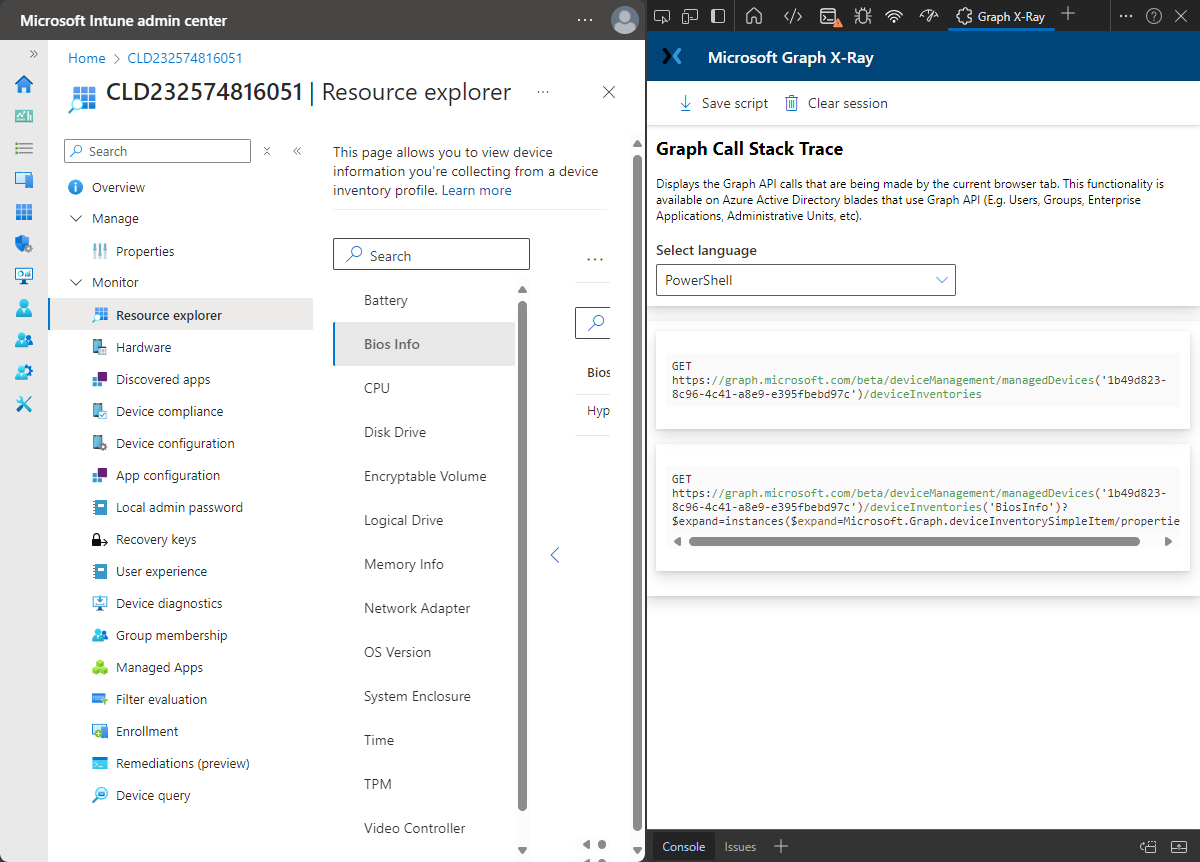
Note: At this moment, the Graph API calls seems to be locked down and that results in a 403 error message.
More information
For more information about the Device inventory and the related components, refer to the following docs.
- Properties catalog in Microsoft Intune | Microsoft Learn
- Intune data platform schema | Microsoft Learn
Discover more from All about Microsoft Intune
Subscribe to get the latest posts sent to your email.
is there a GRAPH API available to GET and POST settings ?
As mentioned above, the calls are available but not accessible.
Regards, Peter