

This week is all about the recently introduced Windows Restore functionality during first sign-in. That functionality is part of the Windows Backup for Organizations feature. That feature on itself not new, but the ability to restore during first sign-in is. Before, the ability to restore the configuration was only available as a tenant-wide configuration that would be available during out-of-box-experience (OOBE). For the basics to get started with Windows Backup for Organizations have a look at this previous post. This post will look at the new functionality to restore during the first sign-in. That functionality does not rely on a tenant-wide configuration, and can be assigned to specific groups of users or devices. The scope of the restore, however, remains the same. This post will walk through the required configuration, followed with the user experience.
Note: For a complete list of settings that will be part of Windows Backup for Organizations, see the documentation.
Configuring Windows Backup and Restore functionality
This post is deliberately discussing the Windows Backup and Restore functionality, as there is no restore functionality without having a backup first. The focus, however, will be on the restore functionality, as that is the new functionality. When looking at the restore during first sign-in requirements, the device must be running Windows 11, version version 24H2, or version 25H2, with at least the security update of March 2026. On top of that, the user must have at least one backup available, and the device must be Entra joined. When that is all in place, the user can sign-in for the first time after enrollment.
When the requirements are applicable to the environment, a single configuration can be used for enabling the Windows Backup and the Windows Restore functionality. Luckily, those configurations are already available as settings within the Settings Catalog. Those settings are EnableWindowsBackup, with the friendly name of Enable Windows Backup, and EnableWindowsRestore, with the friendly name of Enable Windows Restore, and both are part of the SettingSync.admx. In other words, both settings are ADMX-backed settings. That same ADMX-file also contains more detailed settings related to the categories of settings that should be part of the backup. For a complete overview of those settings see the documentation. Eventually, the configuration is pretty straightforward, as all settings are available within the same category within the Settings Catalog. The following eight steps walk through the process of simply enabling the Windows Backup and the Windows Restore functionality.
- Open the Microsoft Intune admin center portal and navigate to Devices > Windows > Configuration profiles
- On the Windows | Configuration profiles blade, click Create > New Policy
- On the Create a profile blade, select Windows 10 and later > Settings catalog and click Create
- On the Basics page, provide at least a unique name to distinguish it from similar profiles and click Next
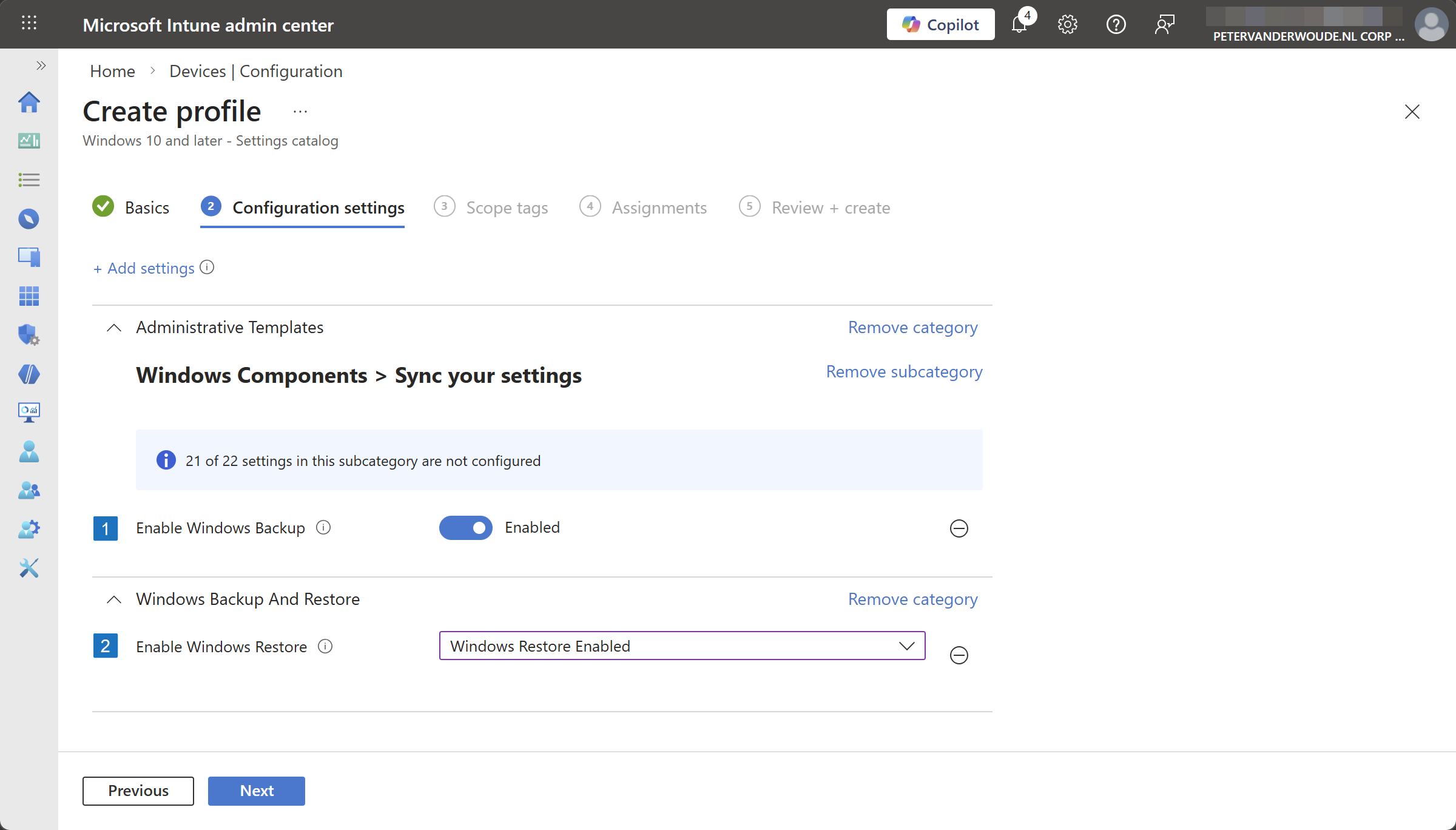
- On the Configuration settings page, as shown below in Figure 1, perform the following actions and click Next
- Click Add settings, navigate to Administrative Templates > Windows Components > Sync your settings and select Enable Windows Backup and navigate to Windows Backup And Restore and select Enable Windows Restore in Settings picker
- Switch the slider with Enable Windows Backup (1) to Enabled to enable the Windows Backup functionality
- Switch the slider with Enable Windows Restore (2) to Enabled to enable the Windows Retore functionality
- On the Scope tags page, configure the required scope tags and click Next
- On the Assignments page, configure the assignment for the required user or devices and click Next
- On the Review + create page, verify the configuration and click Create
Note: This configuration only enables Windows Restore during the first sign-in and not during OOBE.
Experiencing Windows Restore during first sign-in
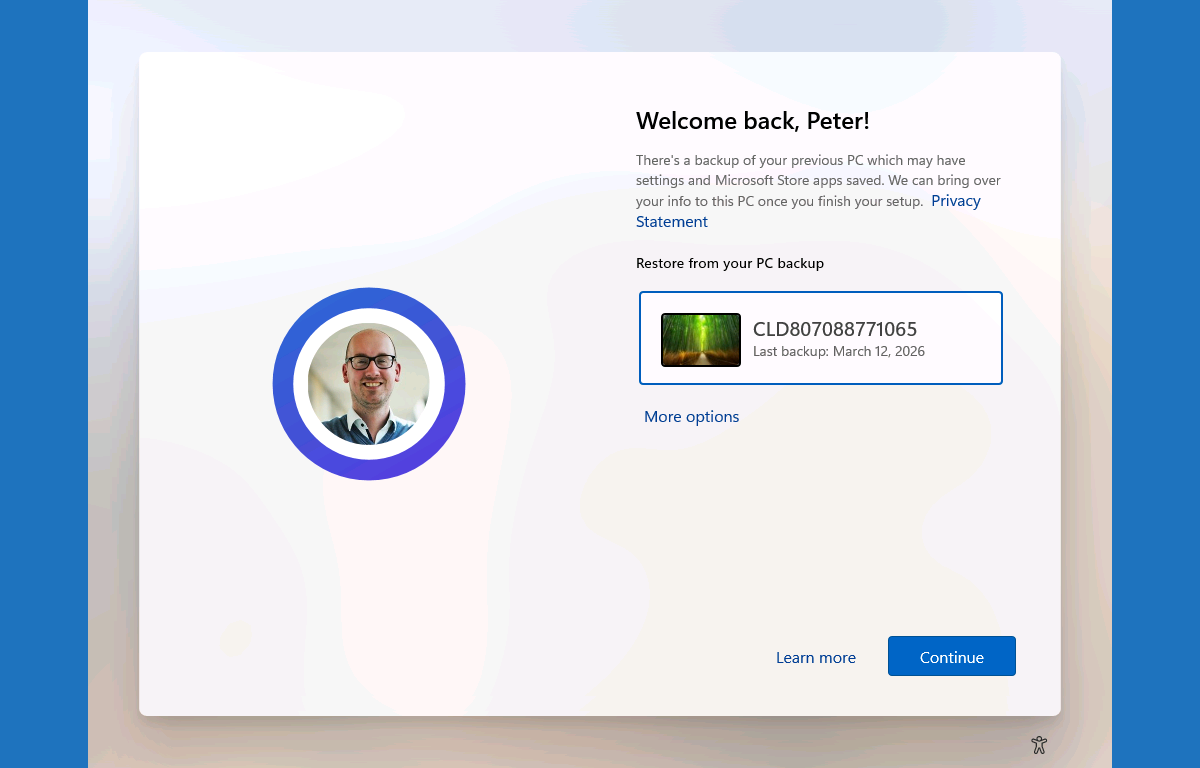
When the configuration is in place, Windows Backup is enabled. That means that a backup scheduled task will run automatically every eight days. During that backup scheduled task the user settings, preferences, and the list of installed Microsoft Store apps will be backed up. When not specifically configured, the user can make adjustments to the components of the backup via the Settings app. Alternatively, users can manually initiate a backup by using the Windows Backup app. Once a backup of the device is available the restore process for a device can be initiated during first sign-in after the device has completed the enrollment. That basically means that the user walks through OOBE, and directly after the first sign-in, often directly after setting up Windows Hello, the user will receive the option to restore a backup, as shown below in Figure 2.
Note: Keep in mind that the restore process for a device can also be initiated at the time of device enrollment during the out-of-box experience (OOBE). That route is just not the focus of this post.
More information
For more information about about the Windows Backup and Restore functionality, refer to the following docs.
- Windows Backup for Organizations Overview | Microsoft Learn
- List of the Policy Settings To Configure Windows Backup for Organizations | Microsoft Learn
- Windows Backup for Organizations settings catalog | Microsoft Learn
Discover more from All about Microsoft Intune
Subscribe to get the latest posts sent to your email.
Do I understand correctly that we no longer need to flip the switch tenant wide to use the restore functionnality with this CP?
Correct, JF!
This allows you to enable it for a part of the users and get it after the first sign-in.
Regards, Peter
can we use it if we enroll the device with provision package using bulk token?
Not sure how that would work. But I haven’t looked at that scenario.
Regards, Peter
Has this been rolled out everywhere? I cannot see the Enable Windows Restore feature in any of my tenants.
I would expect the setting to be available in the Settings Catalog. It was part of the 2602 Service Release (see also: https://learn.microsoft.com/en-us/intune/intune-service/fundamentals/whats-new#new-settings-in-the-windows-settings-catalog–1).
Regards, Peter