
This week is all about easier enabling Shared PC mode with OneDrive sync. That was already possible for many years, as described here, but the configuration became a lot easier. Starting with Windows 11 version 22H2 a setting was introduced that enables IT administrators to enable Shared PC mode with OneDrive sync. For a long time that setting was not available for easy configuration and would require custom configurations to be enabled. That on its turn could create duplicate and conflicting configurations, often caused by multiple policies enabling Shared PC mode. As everything can now be configured via a single policy, those types of issues can be prevented. An IT administrator can now use a single policy to manage everything around Shared PC, even when OneDrive sync must be enabled. This post will provide an overview of the easier steps to configure Shared PC mode with OneDrive sync enabled. This post will end with showing the behavior after applying the configuration.
Important: There should only be a single policy that enables Shared PC mode on a device. When Shared PC mode has already be enabled, the configuration must be removed before it can be enabled with OneDrive sync enabled.
Note: Main adjustment is that Shared PC mode can now be configured from a single policy, including OneDrive sync.
Configuring Shared PC mode with OneDrive sync
When looking at configuring Shared PC mode with OneDrive sync enabled, it all starts with the SharedPC CSP. That CSP contains the different settings that are available for configuring the different aspects of Shared PC mode on Windows devices. Since Windows 11 version 22H2, that CSP contains the node EnableSharedPCModeWithOneDriveSync that can be used to enable Shared PC mode with OneDrive sync enabled. For the configuration by using Microsoft Intune the focus now goes to the Settings Catalog. The Settings Catalog now contains the required settings and provides an easy method for applying those settings.
Besides that, it is also good to be familiar with the fact that enabling Shared PC mode configures a lot of additional policy settings in all different categories. The same is applicable to the different sub-settings of Shared PC mode. Settings to configure the sign-in behavior, the maintenance start time, the power policies, and the education policies. All of those configurations are available via the Settings Catalog. The following eight steps walk through the configuration of configuring Shared PC mode with OneDrive sync enabled, by using the available settings in the Settings Catalog. It provides all the settings that might add value to the configuration of Shared PC mode, including the additional configurations for Shared PC mode.
- Open the Microsoft Intune admin center portal and navigate to Devices > Windows > Configuration profiles
- On the Windows | Configuration profiles blade, click Create > New Policy
- On the Create a profile blade, select Windows 10 and later > Settings catalog and click Create
- On the Basics page, provide at least a unique name to distinguish it from similar profiles and click Next
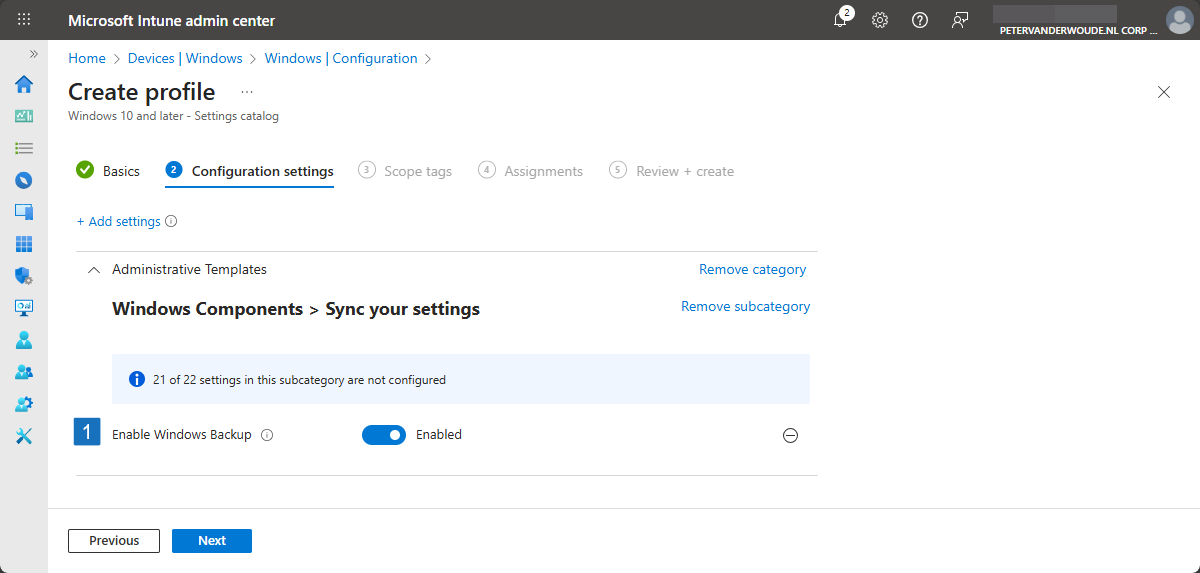
- On the Configuration settings page, as shown below in Figure 1, perform the following actions and click Next
- Click Add settings, navigate to the Shared PC category in Settings picker and go through the following
- Select at least the following settings Account Model, Deletion Policy, Disk Level Caching, Disk Level Deletion, Enabled Account Manager, Enable Shared PC Mode With OneDrive Sync, Inactive Threshold, Maintenance Start Time, Restrict Local Storage, Set Power Policies, Sign In On Resume and Sleep Timeout
- Configure the required settings for the environment with the values like the following
- Select Guest and Domain with Account Mode to configure the type of accounts that are available
- Select Delete at disk space threshold with Deletion Policy to configure when accounts will be deleted
- Specify 75 with Disk Level Caching to configure when to stop deleting accounts
- Specify 25 with Disk Level Deletion to configure when to start deleting accounts
- Select true with Enabled Account Manager to enable account manager
- Select Enabled with Enable Shared PC Mode With OneDrive Sync to enabled Shared PC mode
- Specify 30 with Inactive Threshold to configure when to start deleting inactive accounts
- Specify 1080 with Maintenance Start Time to configure maintenance mode daily at 6PM
- Select false with Restrict Local Storage to allow the use of local storage on the device
- Select true with Set Power Policies to configure the power policies on the device
- Select true with Sign In On Resume to require the signing in after waking up from sleep
- Specify 300 with Sleep Timeout to configure automatic sleep after 5 minutes

Note: Enable Shared PC Mode With OneDrive Sync should not be used in combination with Enable Shared PC Mode.
- On the Scope tags page, configure the required scope tags and click Next
- On the Assignments page, configure the assignment and click Next
- On the Review + create page, verify the configuration and click Create
Important: Keep in mind that to be able to access OneDrive storage, access to local storage should not be restricted.
Experiencing Shared PC mode with OneDrive sync
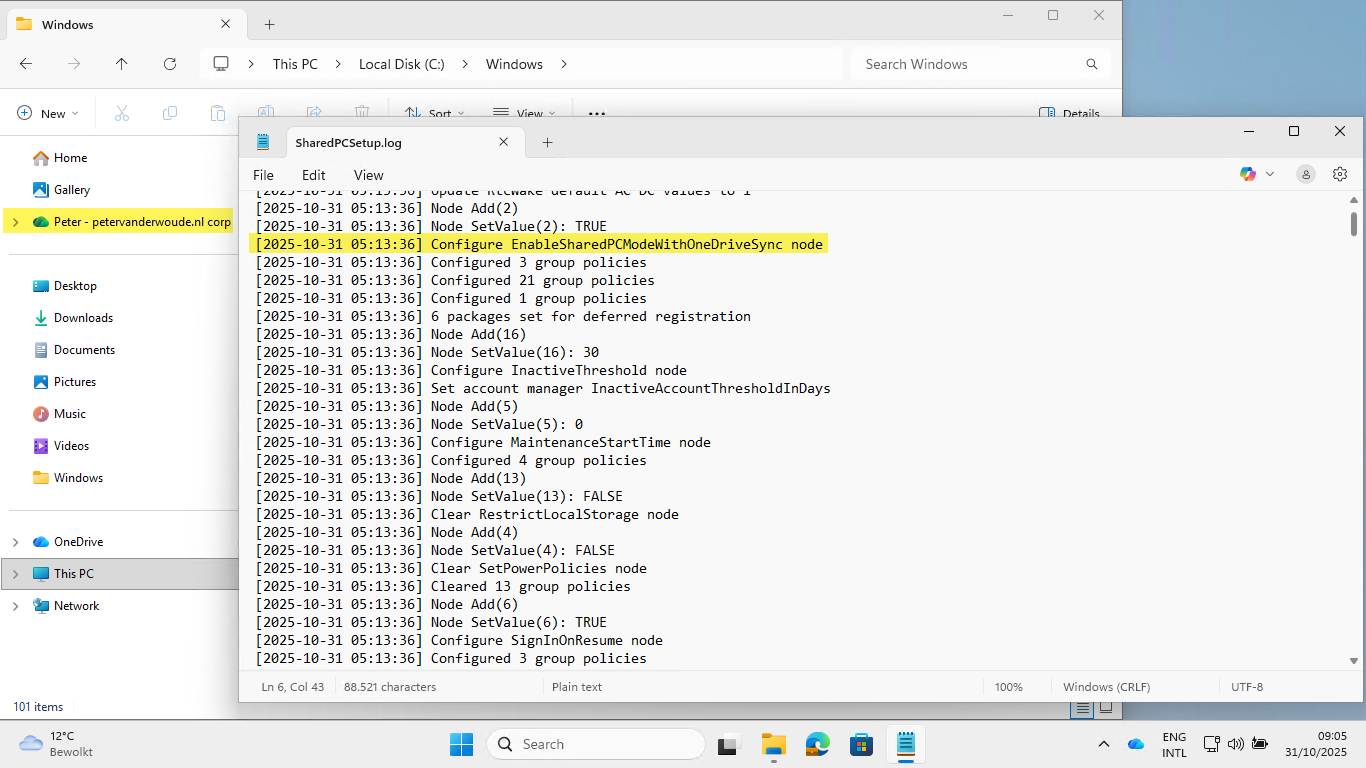
When the configuration is in place, it’s time to verify the experience. The easiest method would be to simply sign-in to Windows with an Entra ID account and to experience the automatic enablement of OneDrive sync. All the settings are part of the complete configuration that will result in a successfully configured device with Shared PC mode and OneDrive sync. Another easy method is looking at the SharedPCSetup.log file that is available in C:\Windows. That log file will clearly state that Shared PC mode with OneDrive sync is configured. Figure 2 highlights the specific line in the log file that provides that information, as it clearly states the name of the policy. Besides that, it also shows information about configuring the other settings of Shared PC mode. In the end, OneDrive will be enabled for the user and accessible, as also highlighted below.
More information
For more information about configuring Shared PC Mode, refer to the following docs.
- Manage multi-user and guest Windows devices | Microsoft Learn
- Configure a shared or guest Windows device | Microsoft Learn
- Shared PC technical reference | Microsoft Learn
- SharedPC CSP | Microsoft Learn
Discover more from All about Microsoft Intune
Subscribe to get the latest posts sent to your email.
Hi Peter,
please clarify:
“When Shared PC mode has already be enabled, the configuration must be removed before it can be enabled with OneDrive sync enabled.”
I currently have only one settings catalog profile to enable Shared PC Mode and an additional custom profile to enable the OneDrive Sync.
I’m lazy and just want to edit the settings catalog profile and add the item there and let clients update the config while removing the custom profile from them.
Does the above statement support this?
Hi Olat,
That statement refers to the options for enabling Shared PC Mode. That can be enabled with or without OneDrive sync enabled, but that can not be adjusted via those same settings.
Regards, Peter
let me clarify
1. I configured various Shared PC mode via Settings Catalog
2. I already enabled Shared PC mode WITH OneDrive sync with additional custom policy (OMA URI)
Now I want to move the 2. setting into my 1. setting as it is available via settings catalog now and give up 2.
Ah, like that. You already had it configured, but you’re changing the location of the configuration. I have to admit that I haven’t tested that. Pure theoretically, I would say that it should be fine if you first adjust it in your initial profile before remove the second. But again; I haven’t tested that.
Regards, Peter
Is there also a way to keep the last logged-in user displayed at Windows startup (shared pc mode)?
I’d like to use this in a school, and often a PC is used by the same user. That would make things a lot easier.
Hi Tom,
Often the policy Interactive logon: Do not display last user name is used for that. Keep in mind, however, from a security aspect it is also advised not to make that configuration.
Regards, Peter
Thanks for this Peter,
In a scenario where we have shared PC mode enabled without OneDrive sync (and thus we see the DisableFileSyncNGSC registry key with a value of 1). How can we convert these machines to being able to use OneDrive?
I have since removed the policy, recreated it, this time with OneDrive enabled and targeted the same machines. The issue I have now is that although I can see ‘EnableSharedPCModeWithOneDriveSync node’ listed in the SharedPCSetup.log, despite me changing the value of DisableFileSyncNGSC to 0, it keeps getting set to 1 and blocking OneDrive.
Hi Graham,
For better understanding; did you first remove the existing Shared PC configuration?
Regards, Peter
Hi Peter, thanks for your reply, no I did not. I understand that this may be required but we have 400 Laptops configured in this mode via Intune and it’s not feasible to turn them all on, remove the existing Shared PC configuration and then reapply it. The laptops are used by our students on a temporary loan basis. I really need to find a way to convert them.
I’m getting this in the sharedpcsetup.log
[2025-11-14 17:29:22] Node Add(2)
[2025-11-14 17:29:22] Node SetValue(2): TRUE
[2025-11-14 17:29:22] Configure EnableSharedPCModeWithOneDriveSync node
[2025-11-14 17:29:22] Node Clear(2)
[2025-11-14 17:29:22] Clear EnableSharedPCModeWithOneDriveSync node
[2025-11-14 17:29:24] Node GetValue(7): 1800
Would you be able to link to any documentation regarding having to first remove the config before reapplying?
Hi Graham,
It only mentions in the documentation of the Shared PC CSP, with the different settings, that they need to be in place before enabling Shared PC Mode.
Regards, Peter
Does shared pc mode do anything to set onedrive in the all users per machine mode install? I am currently trying to set onedrive with the allusers flag but using the onedrive setup exe doesn’t work as it fails as the currently installed version is newer so it never triggers the switch to the per machine mode.
Stuggling to get shared pcs logins to not require installing onedrive in the users app data folder.
Hi Andrew,
From what I’ve seen so far, I would say no.
Regards, Peter
If you have any advice on OneDrive /allusers switch for per machine isntall please share. Even uninstalling OneDrive and manually install with this switch doesnt seem to make any difference to how it loads for a clean profile/first logon.
I haven’t done that recently, but I know that I used to use the guidelines documented here: https://learn.microsoft.com/en-us/sharepoint/per-machine-installation
Regards, Peter