Configuring Windows Spotlight

This week is all about configuring Windows Spotlight. Windows Spotlight is definitely not something new, as it already exists since the beginning of Windows 10, but it is good to be familiar with the capabilities and configuration options. This week will be a refresher. Windows Spotlight is a Windows feature that can be used to display different wallpapers on the background of the desktop and the lock screen, and offers suggestions, fun facts, tips or organizational messages. In that case, when using Windows Spotlight for displaying different wallpapers, a new image is displayed every day on the lock screen or the desktop. On top of that, when using Windows Spotlight for displaying suggestions, fun facts, tips, recommendations are displayed on how to enhance productivity in …

Read more

Understanding Windows 365 Reserve

This week is a little less technical, as it is more theoretical about the concept of Windows 365 Reserve. A concept that justifies some additional context, information and awareness. Windows 365 Reserve is a version of Windows 365 that is focused on providing organizations with a flexible solution to keep users productive during unexpected disruptions on their physical devices. The main idea behind that concept is to add business continuity by enabling direct access to a Cloud PC when there are issues with physical devices. From a user perspective, the concept of Windows 365 Reserve is just another Cloud PC. From a licensing perspective, it is also just another Cloud PC, but just temporarily and with a limited feature set. This post will go into …

Read more

Getting started with Windows 365 Cloud Apps

This week is all about getting started with Windows 365 Cloud Apps. Not something really new, but definitely a simple IT administrator experience that is worth highlighting. Cloud Apps provides IT administrators with the ability to easily provide users with secure access to specific apps only, that are hosted on a Cloud PC. And that access is without the need for a dedicated Cloud PC for those users. That functionality relies on Windows 365 Frontline in shared mode. So, that also means that this functionality requires Windows 365 Frontline licenses. Keep in mind that, even though the name might imply something different, this license is not directly related to any Microsoft 365 F1 or F3 license. The best part of it is, that it has …

Read more

Applying a customizable Taskbar layout

This week is all about customizing the Taskbar layout on Windows 11. More specific, customizing the pinned applications on the Taskbar. That on itself is nothing new, as, just like customizing the Start menu layout, customizing the Taskbar layout has been possible since the early days of Windows 11. The main configurations related to customizing the Taskbar layout are described in this post. That also means that the ideas around customizing the Taskbar layout have not changed. Customizing the Taskbar layout enables organizations to provide users with a standard set of options and pinned applications in the Taskbar. To create a standardized layout for Windows 11, the IT administrator should use a XML-file that contains the configuration of the pinned applications in the Taskbar. What makes …

Read more

Elevating in user context using Endpoint Privilege Management

This week is all about the new feature that was recently introduced in Endpoint Privilege Management (EPM), and that feature is the ability to elevate as the current user. Elevating files, or processes, as the current user enables it to run under the signed-in user account. That enables organizations to address one of the last gaps in the product, which is being able to access personal files while running elevated files, or processes. That means that it is actually running in the user context for that specific action, instead of using the virtual account that is normally used in EPM. It maintains the same user identity. That provides the user with access to the user profile, environment variables, and personalized settings, but also keeps audit …

Read more

Managing account management on Shared PCs

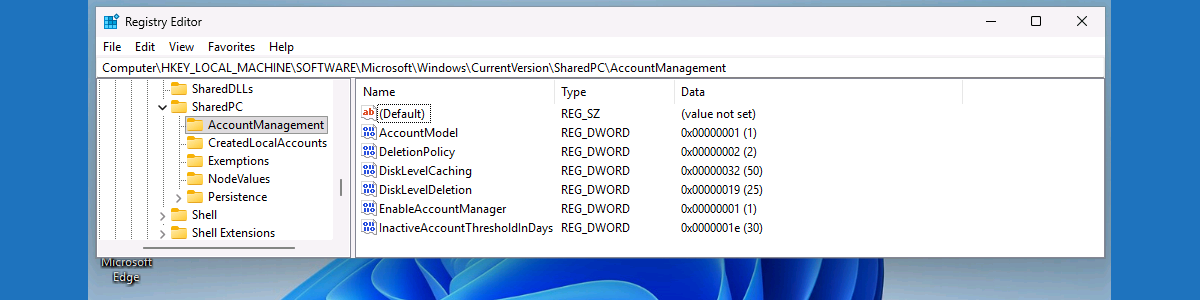
This week is all about a closer look at Shared PC Mode on Windows 11. More specifically, this week is all about managing account management capabilities in Shared PC Mode. Account management in Shared PC Mode is about managing the accounts on the device, determining the users that can sign on to the device, and configuring what automatically starts. This post will mainly focus on the first, managing the accounts on the device. Especially on a device that is being shared between many users, it is important to make sure that those accounts are managed properly to prevent the disk from filling up completely. Luckily, within the capabilities of Shared PC Mode there are options for managing those accounts, including cleaning up accounts when needed. …

Read more

Easier configuring Shared PC mode with OneDrive sync enabled

This week is all about easier enabling Shared PC mode with OneDrive sync. That was already possible for many years, as described here, but the configuration became a lot easier. Starting with Windows 11 version 22H2 a setting was introduced that enables IT administrators to enable Shared PC mode with OneDrive sync. For a long time that setting was not available for easy configuration and would require custom configurations to be enabled. That on its turn could create duplicate and conflicting configurations, often caused by multiple policies enabling Shared PC mode. As everything can now be configured via a single policy, those types of issues can be prevented. An IT administrator can now use a single policy to manage everything around Shared PC, even when OneDrive …

Read more

Customizing only the initial Start menu layout

This week is all about customizing only the initial Start menu layout on Windows 11. That on itself is nothing new, as customizing the Start menu layout has been possible since the early days of Windows 11. The main configurations related to customizing the Start menu layout are described in this post. That also means that the ideas around customizing the Start menu layout have not changed. Customizing the Start menu layout enables organizations to create a standardized layout for their users by pinning apps, removing default apps, ordering apps and more. To create a standardized layout for Windows 11, the IT administrator should use a JSON-file that contains the configuration of the Start menu layout. What makes it extra interesting is the added functionality …

Read more

Configuring the visibility of the Settings pages

This week is not about something new, this week is about configuring the visibility of the different Settings pages. The Settings app is the Windows application that provides a unified interface to manage the different system settings. Almost everything that was configurable in the old days via Control Panel, is now configurable via the Settings app. With some exceptions of course. The main reasons to make adjustments to the visibility of the different Settings pages, are to create a more controlled and secure environment. That can be especially useful for specific types of devices, such as kiosk devices and student devices. In those cases, limiting the access to different Settings pages can help with preventing unauthorized changes and maintaining a consistent user experience. The good …

Read more

Removing preinstalled Microsoft Store apps using native functionality

This week is all about the native functionality to remove preinstalled Microsoft Store apps. Very useful. When working with Windows devices in an enterprise environment, a common request is to control the preinstalled Microsoft Store apps. These default apps, which ship as part of the Windows image, often include consumer-oriented or redundant functionality that does not align with corporate standards. Removing these apps often requires custom scripting, or other creative solutions. Starting with Windows 11 version 25H2, however, there will be native functionality available to facilitate the removal of most preinstalled Microsoft Store apps. That enables the IT administrator to easily remove those preinstalled Microsoft Store apps. Those configurations are available via Group Policy and via Configuration Service Provider (CSP), enabling basically any deployment scenario. …

Read more