

This week is all about the recently newly introduced admin tasks node in the Microsoft Intune admin center. That node provides a centralized view for many different types of administrative tasks. The idea behind that node is to provide a unified experience that helps IT administrators with focusing on the tasks that really matter without navigating through all different nodes within Microsoft Intune admin center. The admin tasks node now provides an overview of all the different security tasks, user elevation requests, and admin approvals request. That further simplifies the life of an IT administrator, when using Microsoft Intune. And the best part of it: it only shows the administrative tasks that the IT administrator is allowed to see based on the original source node. This post will provide a closer at this new experience and what to expect.
Introducing admin tasks in Microsoft Intune
When looking at admin tasks in the Microsoft Intune administrator console, there are a couple of things really important to understand. The first being the available administrative tasks and the second being the role-based access. Let’s start with the former, the available administrative tasks. At this moment the following administrative tasks are available:
- Endpoint Privilege Management elevation requests: These are the elevation requests that are normally found in the Microsoft Intune admin center at Endpoint security > Endpoint Privilege Management > Elevation requests.
- Defender for Endpoint security tasks: These are the tasks that are are created in Microsoft Defender Vulnerability Management and that are normally found in the Microsoft Intune admin center at Endpoint security > Security tasks.
- Multi Admin Approval requests: These are the tasks that are normally found in the Microsoft Intune admin center at Tenant administration > Multi Admin Approval > All requests.
The good thing about this unified location for all administrative tasks is that it doesn’t forget about role-based access control. For an IT administrator that means that there are permissions required to gain access to the admin tasks node, and permissions to the administrative tasks in the original source node. The former means that the Organization > Read permission is required to gain access to the admin tasks node in the Microsoft Intune admin center. On top of that, the latter means that the IT administrator also needs the right permissions within the related node in the Microsoft Intune admin center. Without the permissions to the source task node, and the actual task, the administrative task will not become available to the user.
Overview of admin tasks in Microsoft Intune admin center
The experience within the admin tasks node in Microsoft Intune admin center is actually pretty straightforward. Instead of needing to navigate to the different nodes within Microsoft Intune admin center, all the administrative tasks are now centralized within the admin tasks node. A single location that provides direct access to all the different administrative tasks, without replacing the existing locations for those administrative tasks. So, if needed, it is still possible to rely on those locations. However, as the new centralized location also relies on the same role-based access control, there is no real reason to do so. The admin tasks node is available via Tenant admin > Admin tasks, as shown below in Figure 1.
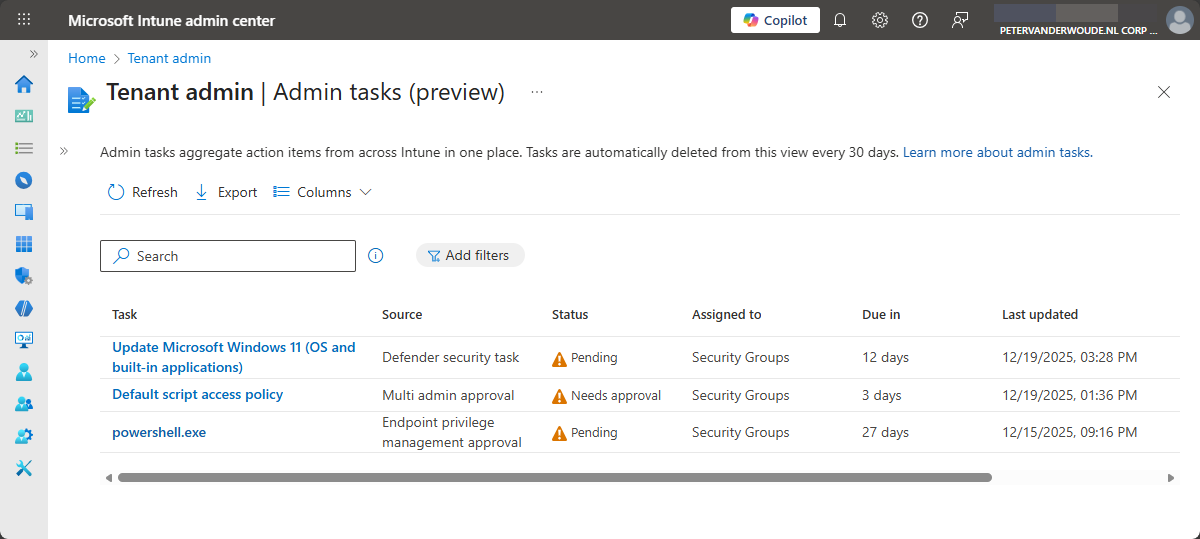
Figure 1 provides an overview of the general user experience with the admin tasks node and shows examples of all the currently supported types of administrative tasks. The table below provides an overview of the information that is shown within that node.
| Column | Description |
|---|---|
| Task | This column contains the name of the task. Select the name of the task to open a flyout pane with task details and management options. |
| Source | This column contains the task source. At this moment that can be: Endpoint privilege management approval – This task is coming from Elevation request in Endpoint Privilege Management. Multi admin approval – This task is coming from All requests in Multi Admin Approval. Defender security task – This task is coming from the Security tasks in Endpoint security. |
| Status | This column contains the current state of the task. At this moment that can be: Active – This status means that the task hasn’t been managed yet. Pending – This status means that the task has been accepted but not resolved. Completed – This status means that the task is complete and no further action is needed. Rejected – This status means that the task was declined. Expired – This status means that the task is expired. Expired tasks are automatically removed after 30 days. Needs approval – This status means that the task is awaiting approval. |
| Assigned to | This column contains the group that the task is assigned to (not in use at this moment). |
| Due in | This column contains the time that remains before the task expires. |
| Last updated | This column contains the date the task was last modified. |
| Created | This column contains the date the task was created. |
A consolidated list of administrative tasks is shown to the IT administrator, based on the permissions of the user on the different types of tasks. Initially that will only include the first 50 tasks that are available for that user. Simply use filters to control the tasks that are shown. When navigating through the different types of administrative tasks, the management pane that is opened is the same as shown in the original location of that administrative task. At this moment that means the following:
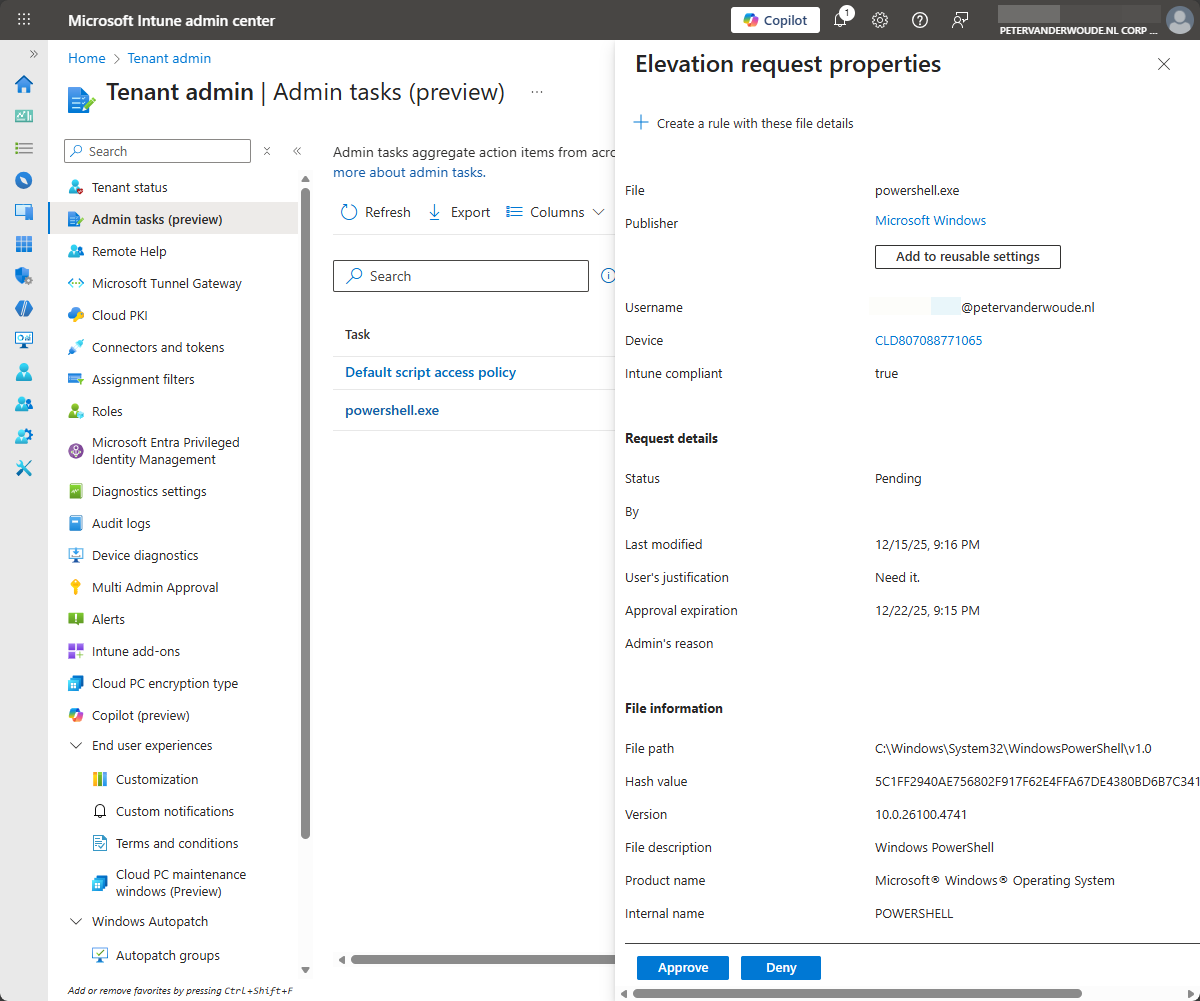
- Endpoint privilege management approval: Figure 2 provides an overview of the experience when selecting an Endpoint privilege management approval request. That request can be approved within that management pane.
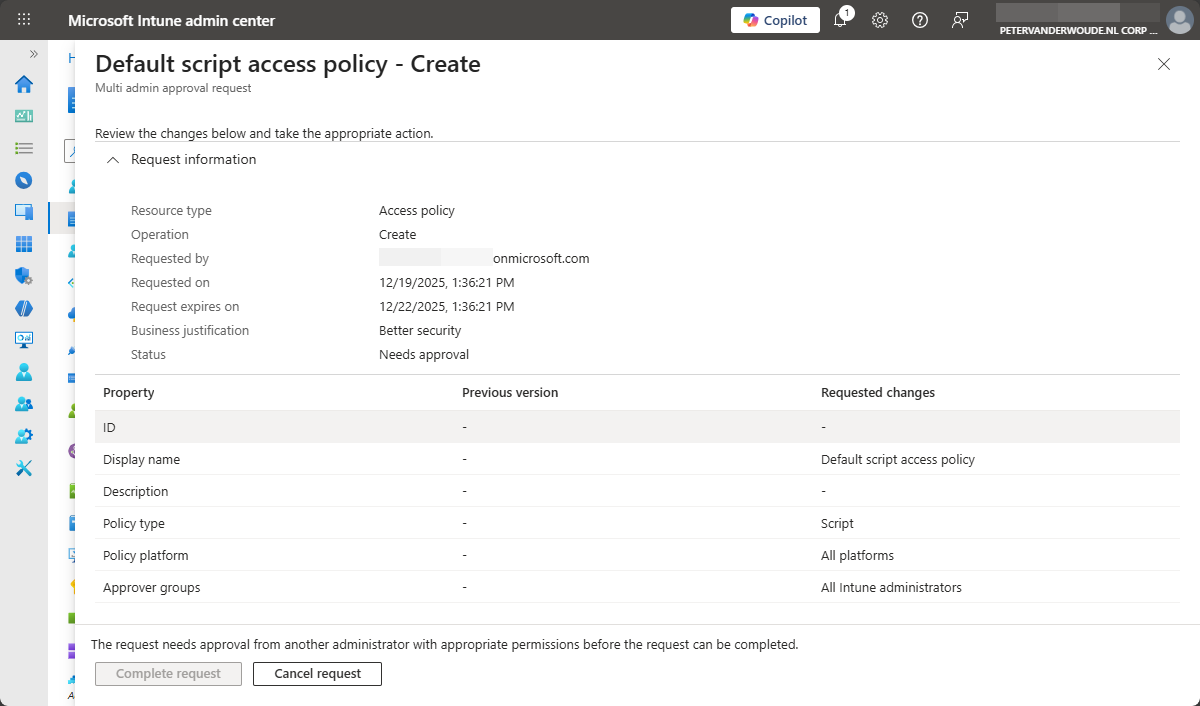
- Multi admin approval: Figure 3 provides an overview of the experience when selecting a Multi admin approval request. That request can be approved and completed within that management pane.
- Defender security tasks: Figure 4 provides an overview of the experience when selecting a Defender security task. That request cannot be fulfilled within that management pane, as it can only be used for accepting and completing the task. The actual remediation steps must be performed outside of the task. That is, however, the normal experience.
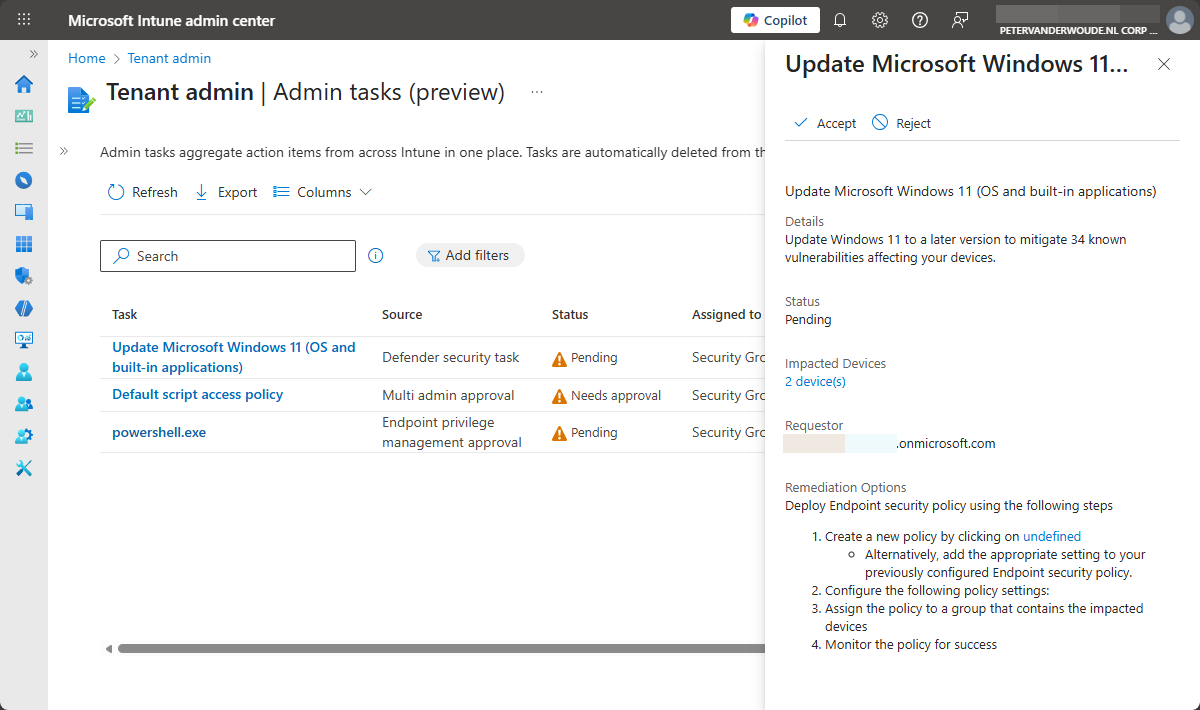
Note: During the initial testing, this environment showed wrong remediation options for the Defender security task.
More information
For more information regarding Admin tasks in Microsoft Intune refer to the following docs.
Discover more from All about Microsoft Intune
Subscribe to get the latest posts sent to your email.
1 thought on “Starting with admin tasks in Microsoft Intune”