

This week is all around managing and containing the usage of personal accounts with the OneDrive app on managed Windows devices. That is definitely not something new, but a recent change in notifications did trigger this post around the usage of personal accounts. Actually, it all started with an item on the public roadmap (490064). That roadmap item is about a new feature that will prompt users for using their personal Microsoft accounts with the OneDrive app, but only when a personal account is already signed in on the device. Of course, one might wonder if that’s a really good approach, but especially the latter part is important; the user will only be prompted when a personal account is already signed in on the device. On top of that, when the organization is against using personal accounts within the OneDrive app, it is already, for a long time, possible for IT administrators to simply disable the usage of personal accounts within the OneDrive app. That all together should not make this roadmap item a really big deal, but it is good to be familiar with an to understand the different options. This post will briefly describe the different options for managing personal accounts with the OneDrive app, followed with the configuration steps.
Configuring the usage of personal accounts in the OneDrive app
When looking at the configuration for the usage of personal accounts in the OneDrive app, there are actually two main settings to look at. The first setting is Prevent users from syncing personal OneDrive accounts (DisablePersonalSync) and that setting will actually prevent the user from configuring personal Microsoft accounts in the OneDrive app. That setting is actually the main choice for organizations to prevent the usage of personal Microsoft accounts. When that setting is enabled, any other setting related to personal Microsoft accounts is no longer relevant. The second setting is the new setting Disable a toast and activity center message to encourage a user to sign in OneDrive using an existing credential that is made available to Microsoft applications (DisableNewAccountDetection) and that setting can be used to prevent Windows from prompting users about personal Microsoft accounts that are currently signed in and that can be used in the OneDrive app. When personal Microsoft accounts are allowed, this setting can help with preventing all users from also adding those accounts to the OneDrive app.
The configuration of those settings is actually pretty straightforward when using Microsoft Intune. Mainly because the configuration can now be managed via the Settings Catalog. The Settings Catalog contains nearly all ADMX-backed settings for OneDrive and those settings are backed by the OneDrive.admx. As an IT administrator these settings are now only a few clicks away and don’t require any really challenging configurations anymore. The following 8 steps can be used to configure the usage of personal Microsoft accounts with the OneDrive app, by using Settings Catalog.
- Open the Microsoft Intune admin center portal and navigate to Devices > Windows > Configuration profiles
- On the Windows | Configuration profiles blade, click Create > New Policy
- On the Create a profile blade, select Windows 10 and later > Settings catalog and click Create
- On the Basics page, provide at least a unique name to distinguish it from similar profiles and click Next
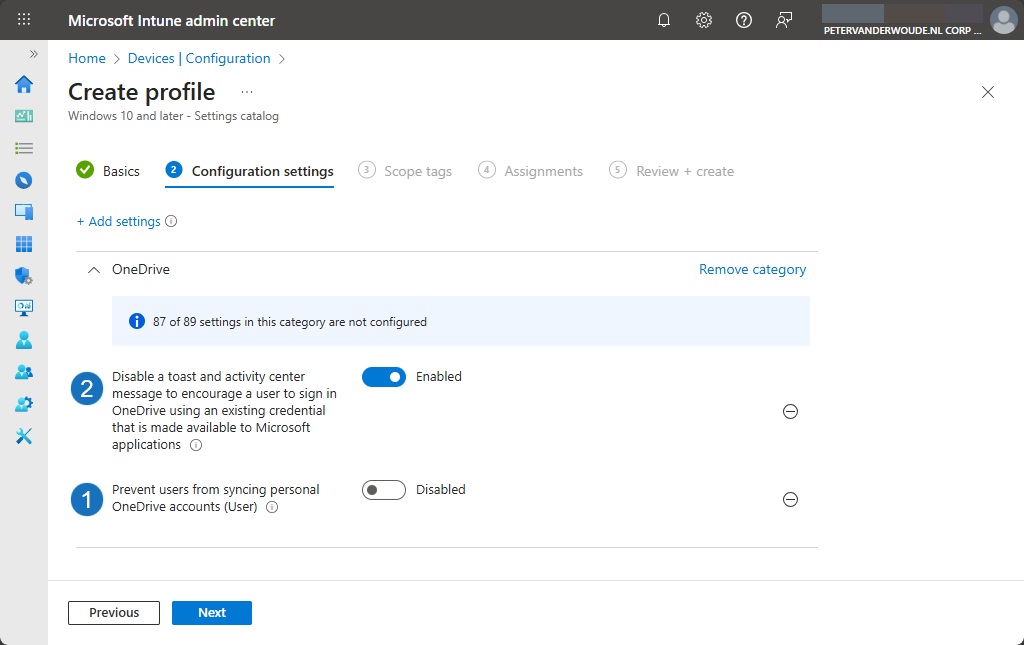
- On the Configuration settings page, as shown below in Figure 1, perform the following actions and click Next
- Click Add settings, navigate to OneDrive and select Prevent users from syncing personal OneDrive accounts (DisablePersonalSync) and Disable a toast and activity center message to encourage a user to sign in OneDrive using an existing credential that is made available to Microsoft applications (DisableNewAccountDetection) in Settings picker
- Switch the slider with Prevent users from syncing personal OneDrive accounts to Enabled to completely prevent users from using personal Microsoft accounts with the OneDrive app, or leave it at disabled and
- Switch the slider with Disable a toast and activity center message to encourage a user to sign in OneDrive using an existing credential that is made available to Microsoft applications to Enabled to prevent users from being prompted
- On the Scope tags page, configure the required scope tags and click Next
- On the Assignments page, configure the assignment for the required user or devices and click Next
- On the Review + create page, verify the configuration and click Create
Note: When preventing users from using personal Microsoft accounts with the OneDrive sync app, other settings related to using personal Microsoft accounts with OneDrive become irrelevant.
Experiencing the configuration of using personal accounts with OneDrive
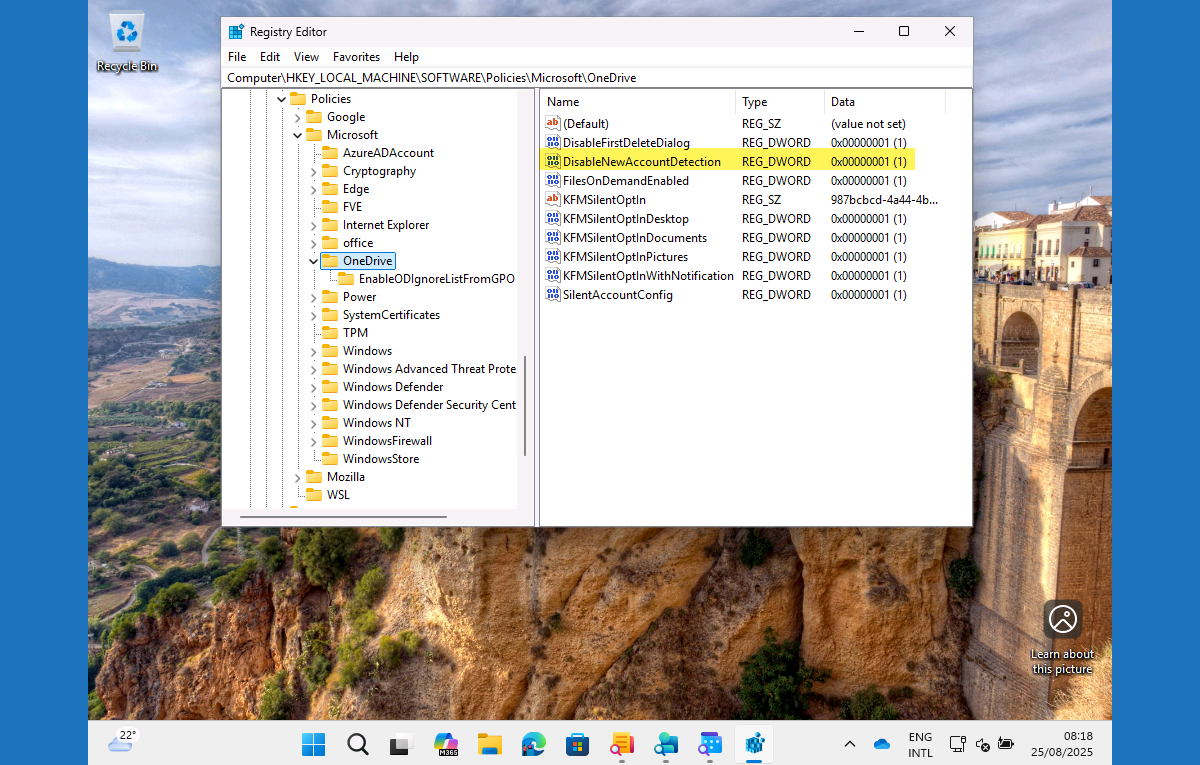
After applying the configuration, it is pretty straightforward to verify the behavior. Especially when specifically looking at the configuration of personal Microsoft accounts in the OneDrive app. The newer setting related to the prompt for the user, however, is not that easy to replicate. The easiest method will be to just verify the configuration within the registry, as all the settings related to OneDrive are backed by ADMX-files. Below in Figure 2 is an overview the applied configuration in the Registry Editor. That provides an overview of the applied configuration via the specified configurations in Microsoft Intune. In this case it is highlighting the new setting related to the new user prompt (DisableNewAccountDetection). Besides that, the configuration related to blocking personal accounts is a user setting and will be shown in the user policy keys.
More information
For more information about managing OneDrive and personal Microsoft accounts, refer to the following docs.
- IT Admins – Use OneDrive policies to control sync settings – SharePoint in Microsoft 365 | Microsoft Learn
- Configure settings with Intune – SharePoint in Microsoft 365 | Microsoft Learn
Discover more from All about Microsoft Intune
Subscribe to get the latest posts sent to your email.
3 thoughts on “Managing the usage of personal Microsoft accounts in the OneDrive app”