

This week is all about another restore capability in Windows, and that capability is point-in-time restore. Recently, Microsoft has introduced many new features related to the backup, restore and recovery of Windows. That started with Quick Machine Recovery, which is focused on recovering Windows devices when encountering critical errors that prevent the device from booting, and that was quickly followed by Windows Backup for Organizations, which is focused on making it easier to switch towards new Windows devices. Now, the next addition is point-in-time restore, which is focused on restoring a Windows device to the exact state of that earlier point in time. Point-in-time restore relies on restore points that are stored locally on the device and that are captured by using Volume Shadow Copy Service (VSS). The main focus of point-in-time restore is fast recovery of resent issues. Especially the latter is important to keep in mind, as the restore points have a retention of a maximum of 72 hours. This post will provide a brief look at this new functionality and the user experience. The remote configuration is currently not yet available. That means that the only configuration that will be covered is related to the preparation (enabling VSS).
Note: Point-in-time restore is still a preview feature that is gradually rolled out to Windows Insider Preview builds.
Understanding point-in-time restore
When looking at the basics of point-in-time restore, it is good to understand the default functioning of point-in-time-restore. That all starts with the capability that will become available over time, which is the ability for IT administrators to remotely configure point-in-time restore. Besides that, point-in-time restore points are – just like regular restore points – stored locally on the device. Those restore points contain the OS, apps, settings, and local files. Any user data is not scope out of the restore point. Point-in-time restore points are set up based on three important aspects.
- Creation window: The creation window determines the schedule when new restore points are created.
- Retention: The retention determines how long restore points are retained before automatic deletion.
- Deletions: The deletions determines that restore points are deleted starting from the oldest.
Point-in-time restore points look pretty similar to regular restore points, as both rely on VSS to revert to a previous state. The main difference, however, is that point-in-time restore introduces a modern approach and focuses on reliability and a broad range of issues. Point-in-time restore will become manageable, is more flexible, and can be scheduled. It is not event driven and restores a full system state. That makes it a big step up from the old school restore points.
Configuring point-in-time restore
When looking at the configuration of point-in-time restore, it all starts with VSS. Point-in-time restore relies on that service for creating the restore points. That service is nowadays enabled by default on Windows, but it is always good to verify. For that verification Microsoft Intune could already be used. For the configuration of point-in-time restore, remote management is currently not yet available. That means that the configuration must be achieved within Windows itself. And that can be achieved within the Settings app. Simply navigate to System > Recovery > Point-in-time restore to get to the configuration. That provides the following configuration options, as also shown below in Figure 1.
- Switch the slider with Point-in-time restore to On to enable point-in-time restore and the detailed settings
- Configure the frequency of the restore point creation with Restore point frequency by choosing between Every 4 hours, Every 6 hours, Every 12 hours, Every 16 hours, or Every 24 hours.
- Configure the retention of the created restore points with Restore point retention by choosing between 6 hours, 12 hours, 16 hours, 24 hours, or 72 hours.
- Use the slide with Maximum usage limit to configure the percentage of the disk space that can be used for point-in-time restore (with a minimum of 2GB and a maximum of 50GB).
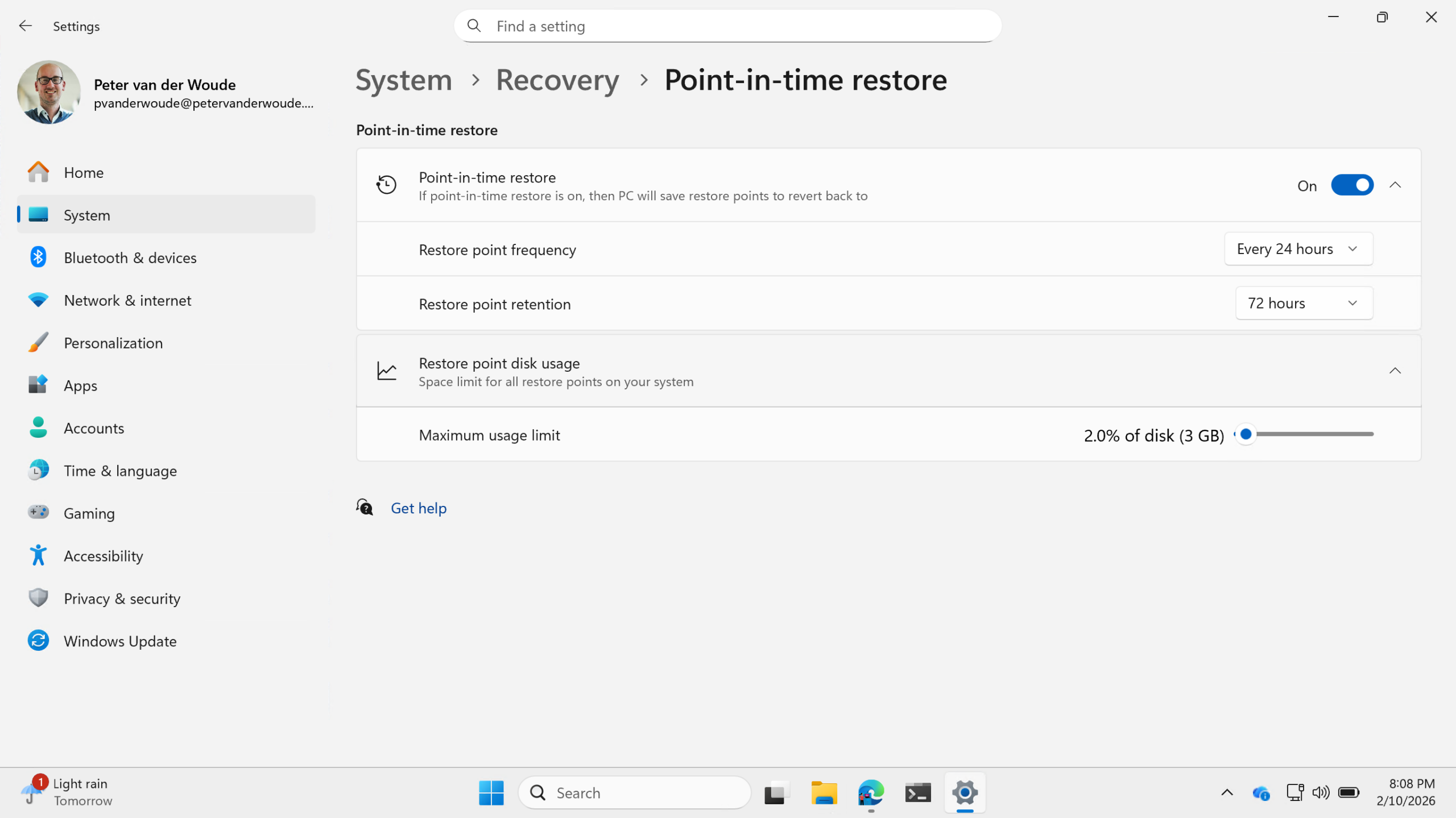
Important: Keep in mind that the maximum usage limit is applicable to all restore points that are captured by VSS.
Note: In the future remote management capabilities will become available for point-in-time restore. That will probably also mean that configuration capabilities will become available in Microsoft Intune.
Experiencing point-in-time restore
Once the configuration for point-in-time restore is in place, it is pretty straight forward to verify the user experience. That experience must be started via the Settings app. Simply navigate to System > Recovery > Advanced startup and click Restart now to get into WinRE (same will happen automatically after repeated boot failures). On the initial screen click Troubleshoot to get into the menu that provides the ability to use point-in-time restore (as shown below in Figure 2).

After clicking on point-in-time restore, the restore process will get started. That restore process starts with a screen to provide the BitLocker recovery key and will be followed with a screen to select the restore point (as shown below in Figure 3).
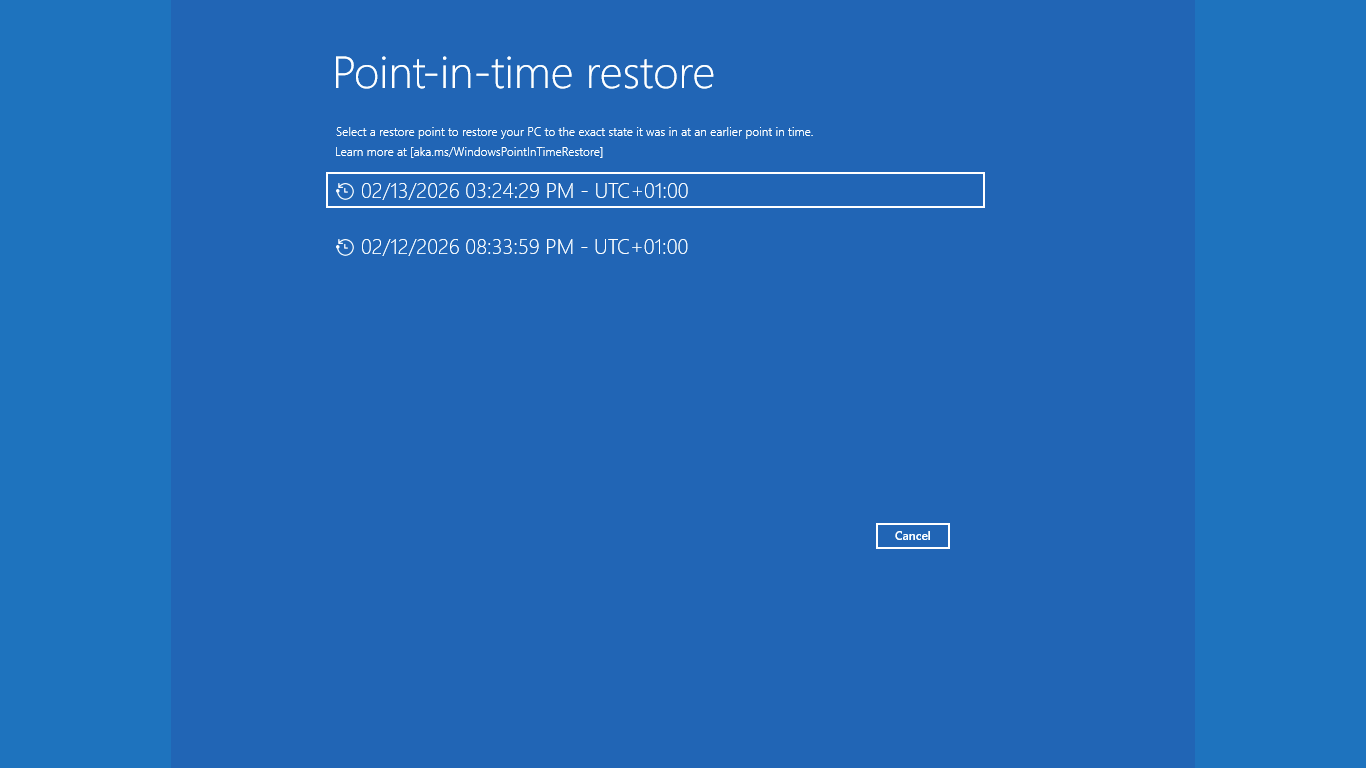
After selecting the restore point, a page will be shown that details the impact of the action. That will be followed with a confirmation page. On the confirmation page, simply click Restore to get the restore process started. When the restore is completed, the device will boot back into Windows again and will be available for the user again.
More information
For more information about the point-in-time restore functionality, refer to the following docs.
- Point-in-time restore for Windows | Microsoft Learn
- vssadmin | Microsoft Learn
- System Restore – Win32 apps | Microsoft Learn
Discover more from All about Microsoft Intune
Subscribe to get the latest posts sent to your email.