

This week is all about customizing the power options in the Start layout, and is the first follow-up on this post about customizing the account settings in Start layout. Again, it is important to start with that the fact that something is technically possible, does not mean that it should actually be done. In most cases, it should be up to the user to configure in the Start layout whatever they need to be productive. There are, however, cases in which an IT administrator might need to take a bit more control. That can be useful on shared devices, such as kiosk devices and Shared PCs. This post will be another part in the series to go through the different sections of the Start layout, this time about the power options. Those power options are basically referring to everything that can be configured that is part of the available options when clicking the power button. This post will start with an overview of the available configuration options, followed with the configuration steps and the user experience.
Introducing the power options configuration options
When looking at customizing the power options in the Start layout, it is all pretty straightforward. All of the clickable options in the power options are configurable. Those configurable items are shown on the right in Figure 1, and are referenced in the table below. That table provides an overview of the configuration settings that belong to those configurable items. The numbers with the friendly names, refer to the numbers in the image. That should provide a pretty clear overview of what those configuration settings will actually configure.
The image actually only shows four of the six items that are configurable, when discussing the account settings. The other are the Hibernate and the Sleep option. Those are both pretty straightforward, but are not part of the overview as the screenshot is coming from a virtual machine.
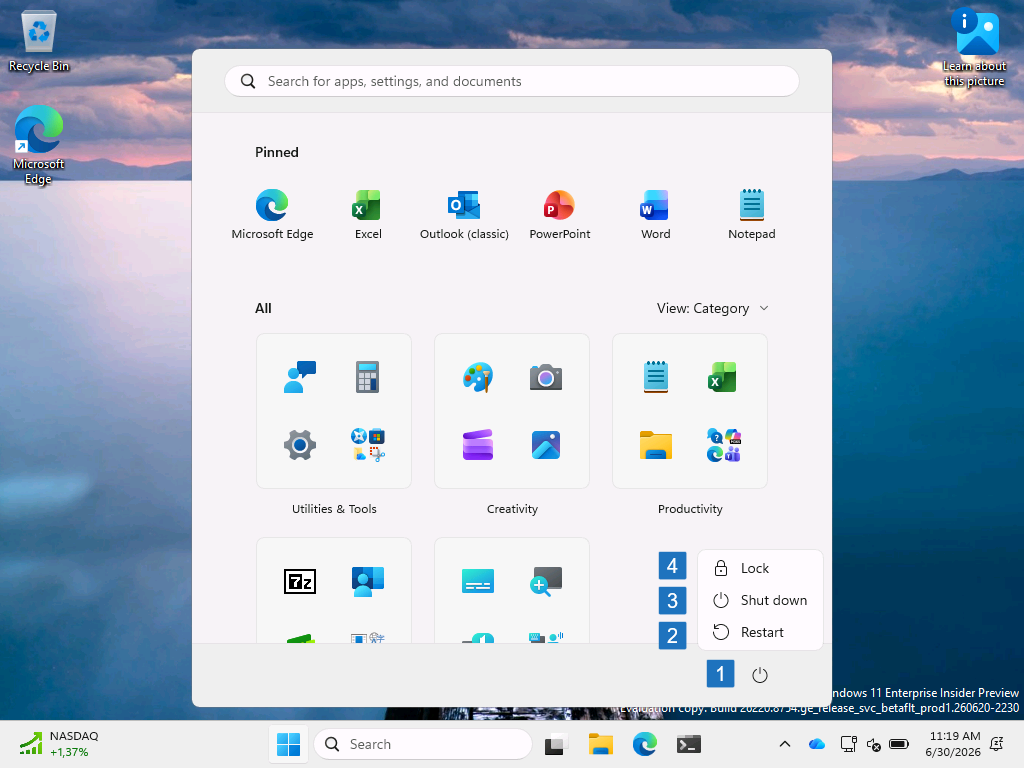
| Friendly name | Node | Description |
|---|---|---|
| Hide Hibernate | HideHibernate | This policy setting can be used to control the appearance of the Hibernate option in the power button menu. |
| Hide Lock (4) | HideLock | This policy setting can be used to control the appearance of the Lock option in the power button menu. |
| Hide Power button (1) | HidePowerButton | This policy setting can be used to control the appearance of the Power button in the power button menu. |
| Hide Restart (2) | HideRestart | This policy setting can be used to control the appearance of the Restart option in the power button menu. |
| Hide Shutdown (4) | HideShutDown | This policy setting can be used to control the appearance of the Shutdown option in the power button menu. |
| Hide Sleep | HideSleep | This policy setting can be used to control the appearance of the Sleep option in the power button menu. |
Configuring the power options in Start layout
When looking at the configuration of the power options, the experience is pretty straightforward. The settings Hide Hibernate, Hide Lock, Hide Power button, Hide Restart, Hide Shut down, and Hide Sleep, are all MDM-specific settings that are not available via Group Policy. Luckily, the configuration of all of those settings is pretty straightforward via Microsoft Intune, as all settings are available within the Settings Catalog. Even better, all settings are available within the same category in the Settings Catalog. The following eight steps walk through the configuration steps to configure the different power options in Start layout.
- Open the Microsoft Intune admin center portal and navigate to Devices > Windows > Configuration profiles
- On the Windows | Configuration profiles blade, click Create > New Policy
- On the Create a profile blade, select Windows 10 and later > Settings catalog and click Create
- On the Basics page, provide at least a unique name to distinguish it from similar profiles and click Next
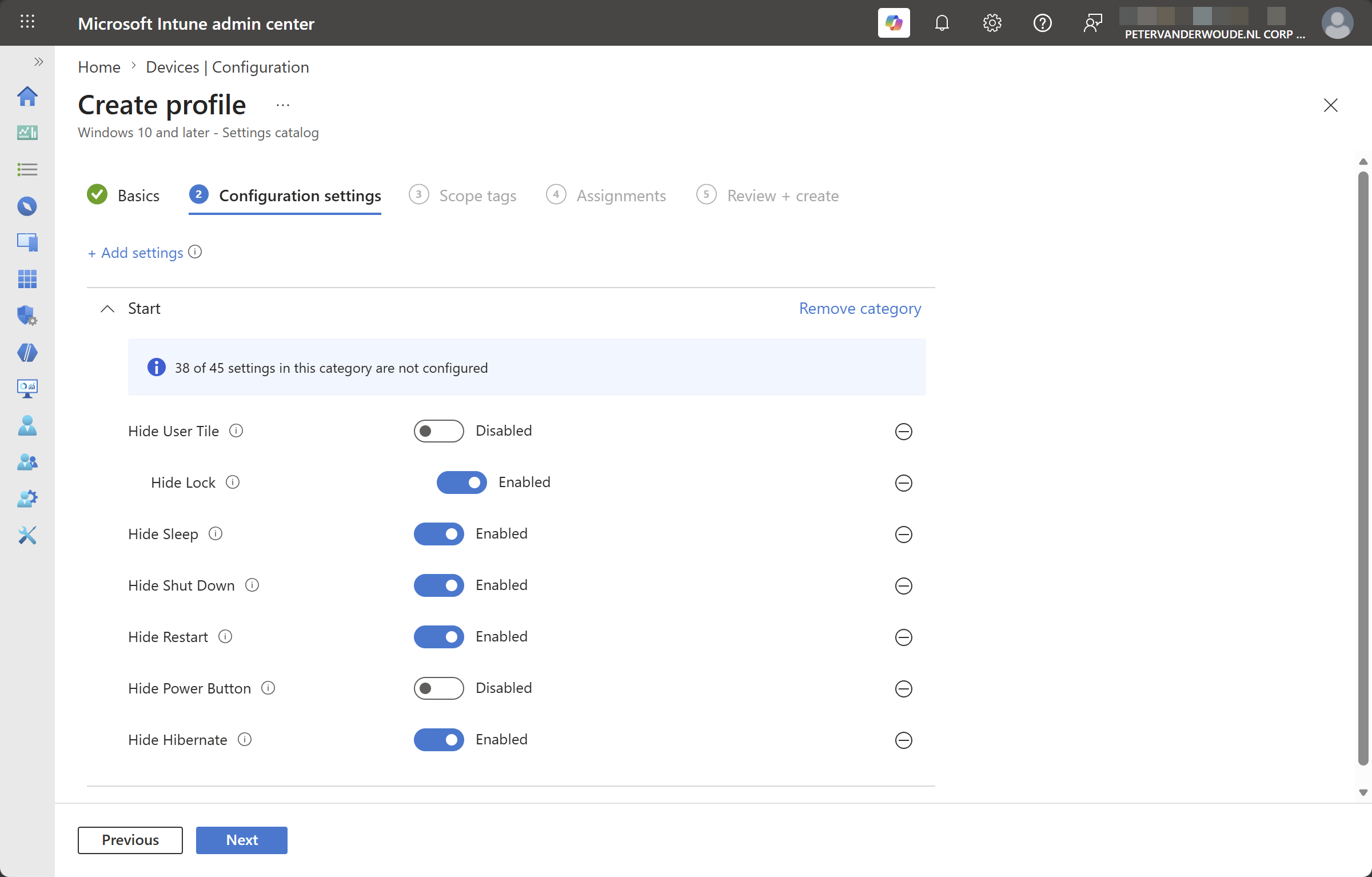
- On the Configuration settings page, as shown below in Figure 1, perform the following actions and click Next
- Click Add settings, navigate to Start and select Hide Hibernate, Hide Lock, Hide Power button, Hide Restart, Hide Shut down, and Hide Sleep in Settings picker
- Enable and configure the different settings that are required for the use cases.
- On the Scope tags page, configure the required scope tags and click Next
- On the Assignments page, configure the assignment for the required user or devices and click Next
- On the Review + create page, verify the configuration and click Create
Note: The configuration of the Hide Lock policy setting currently still depends on the Hide User Tile policy setting.
Experiencing the power options in Start layout
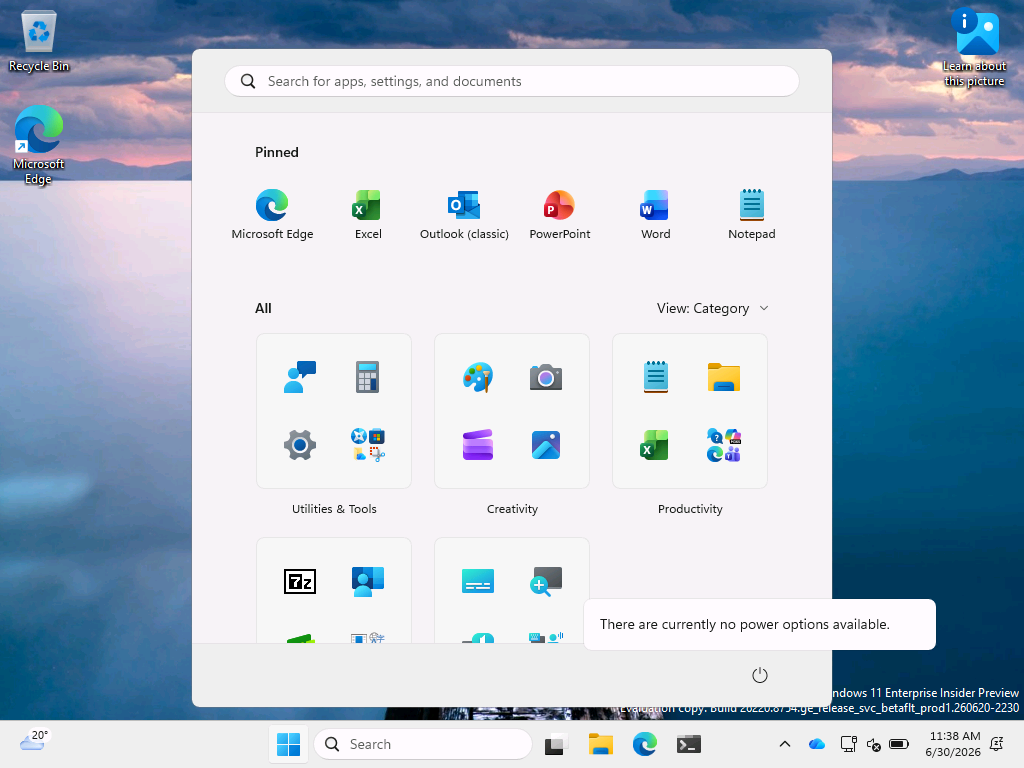
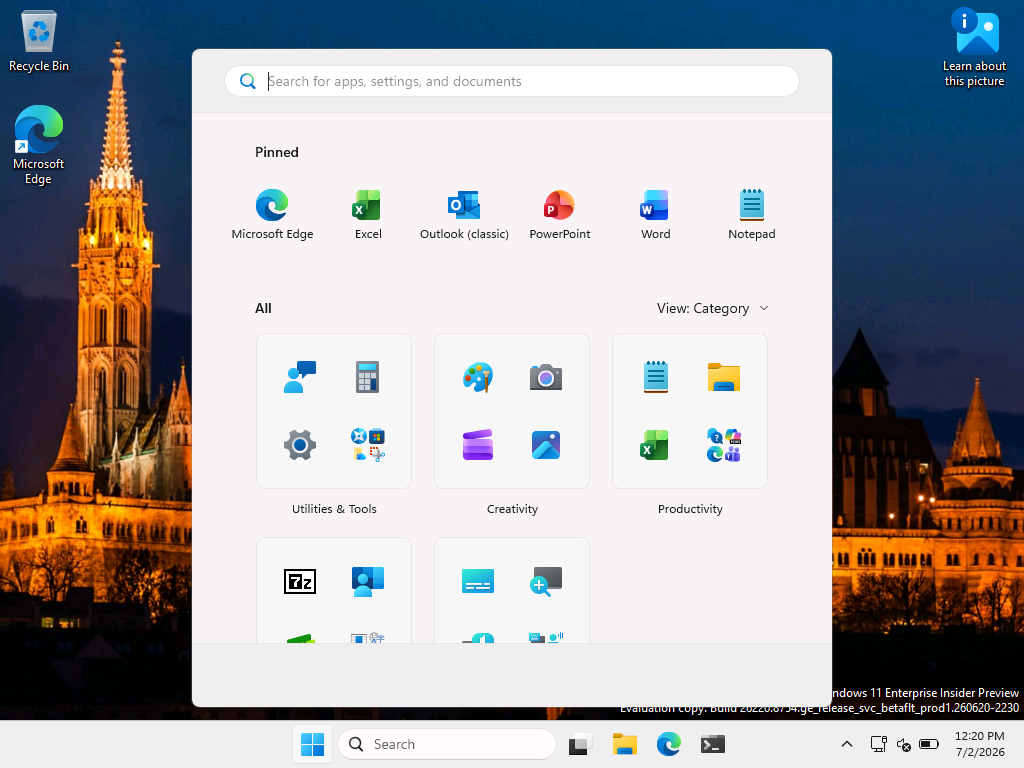
With the different configuration options that where discussed around the power options, the user can be pretty much contained within any required boundaries. Basically, any available options in the power button menu can be configured within the settings. That is shown below in Figure 3 and Figure 4. When nothing is allowed within the power button menu, the complete power button can be removed (as shown in Figure 4). When specific actions are still prevented, like lock, sleep, shutdown, restart, or hibernate, the power button menu can be stripped down to only specific power options (as shown in Figure 3).
More information
For more information about managing notifications, refer to the following docs.
Discover more from All about Microsoft Intune
Subscribe to get the latest posts sent to your email.
1 thought on “Customizing the power options in Start layout”